Turning long videos into viral shorts used to take hours. Now, you can do it in minutes with an AI auto trim clip tool. This is a game-changer for creators and marketers, automating the painstaking process of digging for gold in long-form content.
Unlock Your Content Potential with an Auto Trim Clip Tool
Think about all the content locked away in your podcasts, webinars, and interviews. Every hour of footage is packed with shareable moments, but finding and editing them has always been the biggest hurdle. Manually scrubbing through timelines is a massive bottleneck that chokes your content output.
An auto trim clip tool completely flips the script. You just upload your long video and let the AI take over. It intelligently analyzes your footage, hunting for great hooks, important phrases, and high-energy moments to automatically generate a batch of social-media-ready clips.
This kind of automation means you can multiply your content output without growing your team. If you're curious about what else is out there, it's worth checking out some of the leading AI video editing software on the market today.
A Real-World Win for Marketing Agencies
Here’s a practical example. A marketing agency handles social media for a financial expert who hosts a one-hour weekly webinar. Before, their editor would burn an entire day just to pull two or three short clips for TikTok and Reels from that webinar. It was a grind.
Now, by using an auto trim clip workflow, the agency simply uploads the webinar recording. In less than 30 minutes, they get back a dozen high-quality clips. This shift allows them to post fresh, valuable content every single day, boosting their client's visibility and engagement in a huge way.
That’s the real value here: scaling your content production without scaling your workload. Our AI video clipping tool was built to solve exactly this problem.
Diving In: Your First Auto-Trim Project
There's no better way to grasp the magic of auto-trimming than by getting your hands dirty. Let’s walk through a real-world scenario I see all the time: you've just wrapped up a 45-minute webinar and now you need to mine it for gold—those perfect, shareable clips for social media.
First things first, you need to get your video into the system. Thankfully, this part is a breeze. You can upload a file straight from your computer, drop in a YouTube link, or even pull from cloud storage. With 82% of all internet traffic being video, a smooth upload process is non-negotiable for any modern workflow.
This is exactly what a simple, no-fuss upload screen should look like.
The drag-and-drop interface and link option get you started in seconds, cutting out any initial friction.
Telling the AI What You Want
Once your video is in, it's time to direct the AI. This isn't some mysterious black box; you have real control over the outcome. Your job is to tell the tool what a great auto trim clip looks like for your specific needs.
For our webinar, the goal is to create content for platforms like TikTok and Reels. So, the first thing I always set is the target clip length. Anything between 30 and 60 seconds is usually the sweet spot for these formats.
Next up is the virality sensitivity. I like to think of this as a "punchiness" dial. Cranking it up tells the AI to hunt for moments with high emotion, bold claims, or surprising questions—the kind of stuff that stops a scroll. A lower setting is better when you need more straightforward, informational segments.
Pro Tip: When I’m working with a long piece of content for the first time, I usually set the virality sensitivity right in the middle. This gives me a fantastic mix of highly engaging hooks and more context-heavy clips, which is a perfect starting point for building out a content calendar.
Adding the Final Polish
The last step before letting the AI loose is to handle the branding and audio cleanup. This is where you go from a raw cut to a polished asset that’s ready to publish.
Here are the essential features I always make sure to turn on:
- Apply Brand Kit: This is a huge time-saver. You just upload your logo, set your brand colors, and pick your fonts once. The tool then automatically bakes them into every single clip, keeping your look consistent everywhere.
- Active Speaker Detection: Absolutely critical for any video with more than one person, like an interview or a panel discussion. It intelligently keeps the focus on the person speaking, so you don't have to manually reframe shots. It makes the final cut look so much more dynamic.
- Filler Word Removal: With one click, you can get rid of all the "ums," "ahs," and awkward pauses. It’s a simple trick that instantly makes the speaker sound more polished and authoritative.
With all those settings dialed in, you’re ready to hit "go." The AI takes over, and instead of you spending the next few hours manually scrubbing through a timeline, it delivers a curated batch of branded, clean, and perfectly-framed clips. All that's left for you to do is review and post.
Automating Video Clipping Workflows with an API
While the user interface is great for hands-on work, there comes a point where you need to scale. If you're building video clipping into your own platform or managing a massive content pipeline, manual clicks just won't cut it. This is where you bring in the API. It lets you programmatically control the entire auto trim clip process from submission to final delivery.
For developers and agencies, this is a game-changer. You can build completely automated, white-labeled video repurposing workflows directly into your existing software. Picture a media company with an internal dashboard: a producer pastes in a YouTube link, and a few minutes later, a folder full of branded, social-ready shorts pops up, ready to go. No one ever has to log into another platform.
The real power here is in eliminating manual steps to create a seamless, hands-off flow from a long video to a dozen shareable clips. This high-level process is exactly what you're automating.
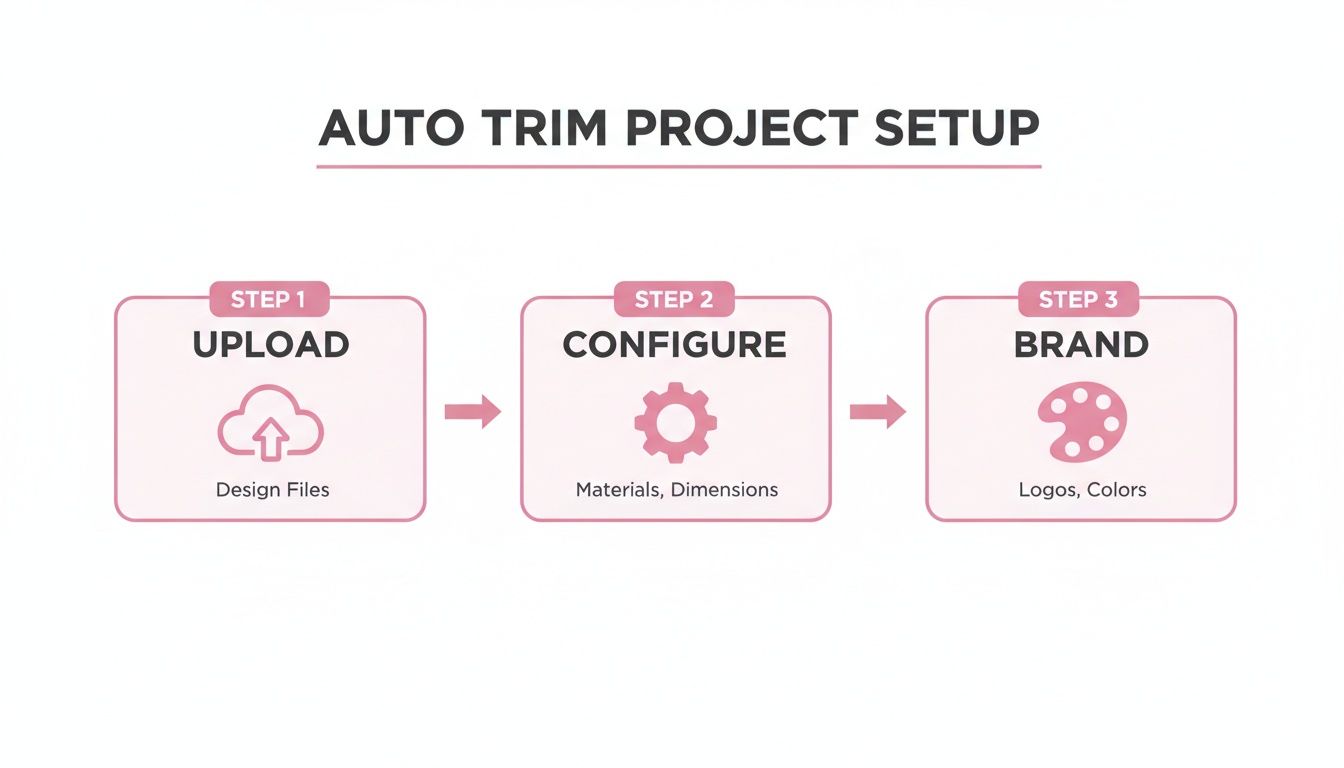
As you can see, the core components—uploading a source, setting the rules, and applying branding—can all be triggered through code. That’s how you build a truly scalable content engine.
Digging Into the Code
Let's look at how this works in the real world with a couple of code snippets. This isn't just theory; it’s how you can start automating your workflow today. For a deeper look at the strategy behind this, check out our guide on the benefits of using an API for video repurposing.
A typical workflow involves a few key API calls: you submit the video, specify your parameters (like clip length and virality), and then check the status until the clips are ready to be downloaded.
Here’s a simple Python script using the requests library to kick off a job by sending a video URL to the API.
import requests

# Your API key and endpoint
API_KEY = "YOUR_API_KEY"
ENDPOINT_URL = "https://api.your-tool.com/v1/process"

# Define the video source and your trimming parameters
video_data = {
    "source_url": "https://www.youtube.com/watch?v=your_video_id",
    "clip_duration": 60,  # Target 60-second clips
    "virality_score": 0.8,  # Focus on highly engaging moments
    "remove_filler_words": True # Clean up the speech
}

headers = {
    "Authorization": f"Bearer {API_KEY}",
    "Content-Type": "application/json"
}

# Send the request to start the job
response = requests.post(ENDPOINT_URL, json=video_data, headers=headers)

# The response will contain a job ID to track its progress
print(response.json())
This little script is all it takes to start the auto trim clip process, telling the system exactly which video to use and what kind of clips to create.
Key API Endpoints for an Auto Trim Clip Workflow
To build a complete, end-to-end integration, you'll typically interact with a few specific endpoints. This table outlines the core functions you'll use to submit a video, monitor its progress, and retrieve the final results.
| Endpoint | HTTP Method | Description | Example Use Case |
|---|---|---|---|
/v1/process |
POST |
Submits a new video for processing and clipping. | Sending a YouTube link and trim settings to start a new job. |
/v1/jobs/{job_id} |
GET |
Checks the status of a specific processing job. | Polling the API to see if your clips are ready. |
/v1/jobs/{job_id}/results |
GET |
Retrieves the URLs for the generated clips once a job is complete. | Downloading the final MP4 files to your own server. |
/v1/designs |
GET / POST |
Manages your branding templates. | Programmatically creating or selecting a design template for the clips. |
Using these endpoints in sequence allows you to fully automate the entire lifecycle of video repurposing, from initial upload to final asset delivery, without any manual intervention.
Scaling Your Content Globally
The demand for programmatic video editing is global, opening up some fascinating opportunities. A creator in the US might film a 45-minute teardown of a Tesla door panel, while a workshop in Indonesia documents a 30-minute bumper repair on a Japanese compact. Both videos can be automatically turned into dozens of targeted shorts by an AI that detects key speaker segments and generates accurate, on-brand captions.
With programmatic control, you can do more than just automate clip creation—you can automate localization. A single API call can trigger auto-translation, generating captions in multiple languages from one video source. You're effectively globalizing your content with code.
This level of automation lets teams of any size produce relevant, high-quality content for diverse audiences without needing a huge team or budget. It’s all about building smarter, more efficient content pipelines.
Fine-Tuning Your Clips for Maximum Engagement
Alright, so you've got a fresh batch of clips. That’s a great first step. But now comes the fun part: turning those good clips into great ones that actually have a shot at going viral on platforms like TikTok, Reels, and YouTube Shorts. This is where we move from just making content to strategically optimizing it.
A huge, often-overlooked way to expand your audience is to think globally. What if you could take one video you recorded in English and, with a click, have shareable clips with accurate, animated captions in a dozen different languages? Auto-translation features do exactly that, opening your content up to a worldwide audience almost instantly.
Don't underestimate the power of captions. Viewers are a staggering 80% more likely to finish a video if it has captions. When those captions are in their native language, that connection becomes even stronger.
Taking Manual Control When You Need It
The AI does a fantastic job of finding those golden nuggets in your long-form content, but you're still the director. Sometimes, you know best. Maybe you want to adjust the timing on an auto trim clip to let a joke land, or perhaps combine two related clips to make a more powerful point.
Our platform gives you that final say. You can easily jump in and manually tweak the start and end points of any clip the AI suggests. It’s the perfect blend of AI speed and human creativity, so you never have to sacrifice your vision.
For example, imagine the AI cuts a clip just a second before the big reveal or punchline. A quick manual adjustment to extend it by a few seconds can be the difference between a flop and a viral hit.
Optimizing for TikTok and Reels
Every platform has its own rhythm, and your clips need to match it. For the fast-paced worlds of TikTok and Reels, your secret weapon is the virality score. This is an AI-powered prediction of how well a clip is likely to perform, which is invaluable for deciding what to post first.
I always tell people to lead with their highest-scoring clips. These are the ones with the strong emotional hooks or bold statements that stop the scroll and get people talking in the comments.
Caption style is another critical piece of the puzzle. Those animated, word-by-word "karaoke-style" captions are proven to keep eyes glued to the screen on these platforms.
Even a niche topic like an auto trim clip can connect with a huge audience if presented correctly. There's a massive market for tutorials and reviews, and that long-form content is perfect for this kind of AI-powered repurposing.
If you really want to dial in your strategy for Shorts, this practical guide on getting more views on YouTube Shorts is packed with actionable tips.
Solving Common Auto Trim Clip Issues
Look, even the smartest automation isn't perfect. While an auto trim clip tool is a massive time-saver, you're bound to get a clip now and then that feels a little off. This isn't a bug; it's just part of the process, and luckily, the fixes are usually pretty straightforward.
The most common thing I hear from people is that the AI missed a key moment they were expecting to see. This usually happens with more nuanced points that don't have the loud, energetic cues the AI is trained to look for. Don't panic—your perfect clip isn't gone forever.
Another frequent hiccup is with captions. You might see the text lag just a fraction of a second behind the speaker during a rapid-fire conversation. Even with transcription technology hitting 95% accuracy or better, minor sync issues can pop up, especially when people talk over each other.
Adjusting the Moment Sensitivity
When the AI misses a good moment, your first line of defense is to adjust the 'moment sensitivity' or 'virality score' before you process the video. Think of this as a dial for how selective the AI should be. A lower sensitivity tells the AI to be less picky and grab a wider variety of moments, including those quieter, more thoughtful segments.
For instance, if you're clipping a dense technical tutorial, a lower sensitivity will help the AI grab the step-by-step instructions instead of just looking for the big "aha!" moments. It’s a simple tweak that can make a huge difference in the quality of your clips.
Our own data shows that users who just play with the sensitivity settings once or twice are 50% more likely to get the exact clips they want on the first pass with their next video. It’s a tiny bit of upfront effort for a massive payoff later.
Merging and Refining Your Clips
What happens when the AI gets the right idea but splits it into two separate clips? Instead of just trashing them, the best move is to merge them. A good editor makes it simple to stitch two or more clips together into one seamless video. This puts you back in the driver's seat, letting you build a more complete and powerful narrative.
As for those out-of-sync captions, the fix is just as easy. You can jump right into the editor and manually adjust the timing of the caption track. Just a little drag and drop, and everything lines up perfectly.
Here’s a quick-glance guide for fixing these common issues:
-
Problem: The AI skipped over a subtle but important point.
- Solution: Rerun the video with a lower moment sensitivity setting.
-
Problem: A single thought is awkwardly split into two clips.
- Solution: Pop into the editor and merge the two clips into one.
-
Problem: Captions are a beat behind the audio.
- Solution: Manually drag the caption timeline to align it perfectly.
These simple controls ensure you always have the final say, turning the AI's smart suggestions into perfectly polished videos ready for your audience.
Answering Your Questions About Auto Trim
Getting started with a new auto trim clip tool is exciting, but it's smart to have a few questions. Let's dig into some of the most common ones we hear from creators and marketers looking to automate their video editing.
How Does the AI Know What to Clip?
It’s a lot more sophisticated than just spotting the loudest moments. The AI acts like an expert editor, analyzing your video on multiple levels to pinpoint the highlights. It listens to speech patterns, detects changes in a speaker's tone, tracks significant visual action, and even understands the context of the conversation.
This intelligence comes from being trained on millions of high-performing short-form videos, so it’s learned to recognize the exact patterns that grab and hold a viewer's attention.
Best of all, you're still in the driver's seat. You can fine-tune the AI's choices by setting your desired clip length or adjusting the "virality score" threshold, giving you the perfect mix of smart automation and creative control.
Can I Use This for Videos That Aren't in English?
Absolutely. Today’s auto trim tools are designed for a global audience and handle dozens of languages for transcription, captioning, and analysis. In fact, support for over 90 languages is common. This means you can upload content in Spanish, French, Mandarin, or Hindi and expect the core features to work perfectly.
Imagine you've just recorded a product demo in English. Instead of re-recording it for other regions, you can use the auto-translation feature. In just a few clicks, you can generate clips with accurate, animated captions in German and Japanese, instantly making your content accessible to new international markets.
What’s the Real Difference Between Using the UI and an API?
Think of it this way: the UI is like driving a car, while the API is like building the engine.
The User Interface (UI) is the visual, web-based dashboard you log into. It's perfect for creators, marketers, and small teams who want a hands-on, drag-and-drop experience. It's built for ease of use and direct creative input.
The API (Application Programming Interface), on the other hand, is for developers or platforms that need to plug this technology directly into their own systems or handle massive volumes of video. While you use the UI to process videos one by one, the API lets you build completely automated solutions on top of the core tech.
For instance, a software company could use the API to build an automatic short-form video generator right into their own product for their customers to use. It's no surprise that a recent developer survey found that 68% view APIs as essential for creating better products, underscoring their power for custom, scalable solutions.
Ready to stop spending hours on manual edits and start multiplying your content? With an AI-powered platform, you can turn your long videos into a pipeline of engaging, social-ready clips in minutes. Experience the future of video repurposing and start your free trial today.