Knowing how to clip a YouTube video has become an essential skill for creators. It's all about taking a long-form video and carving out the best moments to share. You can use YouTube's own 'Create Clip' feature for a quick share, dive into the YouTube Studio Editor for more precise cuts on your own content, or use specialized third-party tools for advanced edits and even automation.
Each method serves a different purpose, whether you're just sending a funny bit to a friend or building a full-blown content strategy around polished, viral-ready Shorts.
Why Clipping YouTube Videos Is a Growth Engine
Let's be honest, the way people watch videos has completely changed. Snipping your long-form content into bite-sized, shareable moments isn't just a neat trick anymore—it's a core strategy for growth. This is how you reach new audiences on platforms like TikTok, Instagram Reels, and YouTube Shorts where short-form video is king. It breathes new life into your back catalog, getting more mileage out of the hard work you've already put in.
This isn't just theory; it's a proven tactic. Think about a gaming creator who streams for hours on end. By isolating the most hilarious or clutch moments from a three-hour broadcast and turning them into Shorts, they can easily triple their monthly views. That single stream becomes a content goldmine that keeps working for them long after they've gone offline. Want to know more about what makes these clips take off? Check out our guide on how many views is viral.
Choosing Your Clipping Method
So, which tool should you use? It really boils down to your end goal. Are you just trying to quickly share a funny moment with a friend? Or are you a creator building a professional pipeline to feed all your social media channels?
This decision tree is a great way to figure out where to start. Your priority—whether it’s speed, professional editing, or automating the whole process—will point you to the right tool for the job.
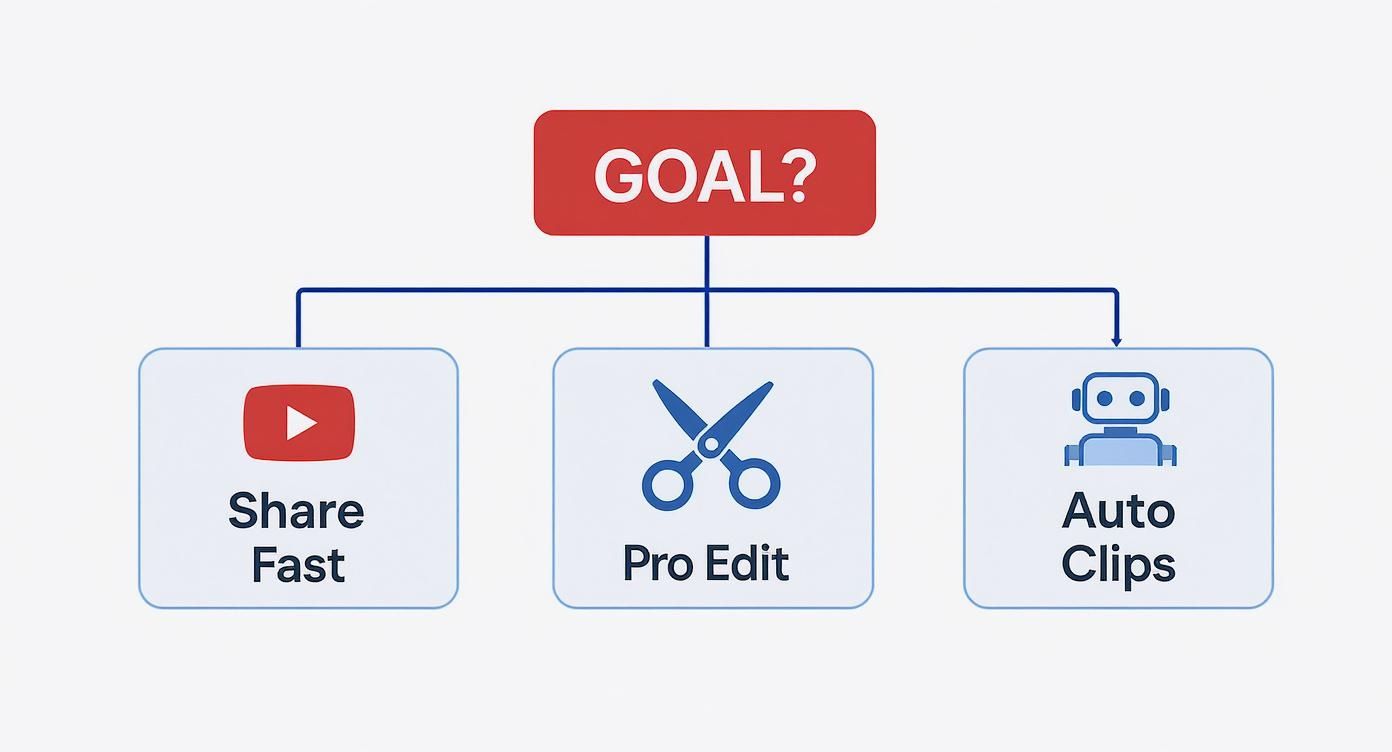
As you can see, your objective maps directly to a specific workflow. If you want to share fast, stick with YouTube’s native tools. Need a pro edit? You'll download the footage. And for scaling up, automation is your friend.
The demand for this is just exploding. In fact, people are now creating over 14 million videos monthly using YouTube’s native clipping feature alone. This massive number signals a huge shift in creator behavior. Everyone is repurposing content to feed the beast, especially with YouTube Shorts now generating up to an incredible 90 billion views daily.
And it makes perfect sense when you consider that over 63% of all YouTube watch time now happens on mobile. Creating short, vertical clips isn't just an option; it's how you stay relevant and capture your audience's attention where they are.
Clipping Method Comparison At a Glance
Feeling a bit overwhelmed by the options? Don't worry. This table breaks down the most common methods to help you quickly decide which path is right for you.
| Method | Best For | Ease of Use | Key Feature |
|---|---|---|---|
| YouTube 'Create Clip' | Quick, casual sharing of any creator's content. | Very Easy | Creates a shareable link to a 5-60 second clip. |
| YouTube Studio Editor | Basic edits and trims on your own videos. | Easy | Non-destructive editing within the YouTube platform. |
| Desktop Software | Professional, high-quality edits with full creative control. | Intermediate | Advanced features like color grading and motion graphics. |
| Mobile Apps | On-the-go editing for social media. | Easy | Quick, template-driven workflows for vertical video. |
| Automation Platforms | Creators who want to scale their content production. | Varies | AI-powered clip suggestions and automated workflows. |
Each approach has its place. Your choice will ultimately depend on your specific project, your technical comfort level, and how much time you're willing to invest.
Using YouTube's Native Clipping Tools
Right on the YouTube platform itself, you have two surprisingly different ways to create clips. One is built for lightning-fast sharing with the public, and the other gives you the deeper editing power you need for your own content. Knowing which to use and when is the key to working smarter, not harder.
Let’s break down both methods so you can get clipping without ever leaving YouTube.
The Instant Share with 'Create Clip'
Ever been watching a video and thought, "I have to send this exact moment to a friend"? That’s precisely what the ‘Create Clip’ feature is for. It's designed for speed, letting anyone grab a small chunk of an eligible video to share.
Here's a practical example: You're watching a long tech review of a new smartphone. At the 15-minute mark, the reviewer perfectly summarizes the camera's biggest flaw in 30 seconds. Instead of telling your friend to "skip to 15:00," you can use the 'Create Clip' feature to isolate that exact segment and send them a direct link.
Getting it done is simple. Just look for the scissors icon labeled “Clip” right below the video player. Clicking it opens a small window where you can drag a selection box along the video's timeline. You can make your clip anywhere from 5 to 60 seconds long.
Give it a quick title, hit “Share clip,” and you get a unique link. This isn't a new video file; it's more like a digital bookmark that takes people straight to that specific moment in the original video. It's the perfect tool for a quick, "You've got to see this" share.
Deeper Control with the YouTube Studio Editor
When you need to do more than just share a snippet—when you need to actually create a new, standalone piece of content from a video you've already uploaded—you'll want to head into the YouTube Studio Editor. This is where the ‘Trim & Cut’ function lives, and it’s a game-changer for repurposing your long-form videos.
Unlike the simple 'Clip' feature, the Studio Editor offers a more robust editing interface. It's your command center for making precise cuts.

Here, you can set exact start and end points, preview your new, shorter video, and save it as a completely separate upload on your channel. You’re not limited to just trimming the ends, either; you can also snip out sections from the middle to remove fluff or mistakes. To nail down the perfect timestamps for these edits, it's often helpful to first get a transcript of a YouTube video and pinpoint the exact phrases you want to keep or cut.
Key Takeaway: The Studio Editor performs non-destructive edits. This means your original video remains completely untouched. You can experiment and create dozens of different clips from one video without any risk. It's the ideal way to turn a 45-minute webinar into five different YouTube Shorts.
So, while 'Create Clip' is about sharing moments, the Studio Editor is all about creating new assets. It's a fundamental tool for any creator looking to get the most mileage out of every single video they produce.
Using Third-Party Tools for Pro-Level Clips
Let's be honest, YouTube’s built-in tools are fine for a quick trim or sharing a funny moment with a friend. But when you need to create something with real polish—a clip that truly represents your brand—you're going to hit a wall pretty fast.
For things like custom branding, eye-catching animated captions, or reformatting for other platforms, you need to bring in the heavy hitters. This is where third-party editing software comes in, giving you the creative firepower that native tools just can't match.

This is about more than just looking good. It’s about standing out. With video now making up over 82% of all consumer internet traffic, your short-form content has to be sharp, professional, and built for the platform it lives on.
When YouTube's Tools Just Don't Cut It
Imagine you're a marketing manager with a 30-minute webinar on YouTube. Buried inside is a killer 20-second soundbite from a customer testimonial that would be perfect for an Instagram Reel.
If you try to use YouTube’s Studio Editor for this, you’ll run into problems almost immediately.
- Aspect Ratio is Wrong: The original video is 16:9 (widescreen), but Reels demand a 9:16 (vertical) format. YouTube's editor can't reframe it for you.
- No Real Branding: You want to add your company logo and burn in captions using your brand's specific font and color palette. The native tools don’t offer that level of customization.
- Lacks Polish: What about a smooth transition into the clip and a clear call-to-action at the end? You'll need a proper editor for that.
This is the exact point where a dedicated video editing tool becomes a non-negotiable part of your workflow. It provides the granular control you need to turn a simple snippet into a powerful marketing asset.
A Typical Pro-Clipping Workflow
Yes, using external software adds a few extra steps, but the huge leap in quality is well worth the effort. Whether you’re using a desktop app like CapCut or a powerful web-based platform, the general process looks something like this.
First, you need the source video. If it's your own content, you can simply download the original file from your YouTube Studio. If it’s not your video, you’ll need to stick to methods that don't violate YouTube’s terms, like screen recording the specific part you want to reference (while being mindful of copyright).
With the footage in hand, you’ll import it into your editor of choice. This is where the magic happens. You can trim with frame-by-frame precision, reframe the video for a vertical 9:16 view, add stylish text overlays, and apply your full brand kit.
For teams looking to do this at scale, an AI video clipping tool can be a game-changer, automatically identifying the most compelling moments and applying brand styles, which can save you a massive amount of time.
A Quick Word on Copyright and Fair Use
Be very careful here. Downloading and re-editing someone else's content is a fast track to a copyright strike. Always make sure you have the rights to use the video. While "fair use" exists for things like commentary, news reporting, or parody, it's a legal gray area. The safest bet, by far, is to only clip and repurpose your own content.
By going beyond YouTube’s basics, you’re not just making a video shorter. You’re strategically redesigning it to capture attention and drive results, no matter which social media platform you post it on.
Automating Your Clipping Workflow with AI
Let's be honest: manually clipping videos is a grind. If you're a creator or marketer trying to scale up, scrubbing through hours of footage to find a few golden nuggets is a massive time-sink. It's the kind of work that quickly burns you out and slows down your entire content machine. This is exactly where AI-powered platforms completely change the game.
Think about it. You could turn a two-hour podcast episode into ten viral-ready clips in just a few minutes. That same task would easily take a human editor the better part of a day. AI tools make this a reality by automatically analyzing your long-form videos to pinpoint the most engaging and shareable moments.
This isn't just a shot in the dark, either. These platforms are smart, looking at a variety of signals to find the best segments for your short-form content.
- Speaker Energy and Cadence: The AI can literally hear when a speaker gets passionate, energetic, or delivers a key point with real conviction.
- On-Screen Text and Keywords: It reads your screen, identifying when important terms or phrases pop up, like on a presentation slide.
- Viewer Engagement Patterns: Some of the more advanced tools can even analyze existing YouTube data to find the exact spots where viewer retention spikes.
This approach doesn't replace your creativity; it unleashes it. By letting the AI handle the grunt work of finding the clips, you're free to focus on what really matters: refining your message, perfecting the edits, and actually engaging with your community.
How AI-Driven Clipping Works
The technology behind these tools has come a long way. In fact, 54% of marketers are now using AI to get more done and cut costs. These systems are trained to automatically spot engaging moments by analyzing thousands of viral video patterns, then suggest the best parts to clip. This is a huge deal when you consider that YouTube viewers watch over 1 billion hours of content every single day. By automating how you find those peak moments, you can shift your focus from tedious labor to strategic content planning. For more on this, check out the latest video marketing stats from The Desire Company.
Here's how it plays out in the real world: A podcaster finishes a two-hour interview. Instead of re-watching the whole thing, they upload it to an AI clipper. The platform kicks back 15 suggested clips, each with a "virality score," animated captions, and their brand overlay already applied. All they have to do is review, approve, and schedule them for posting. The whole process takes less than 30 minutes.
Our Edge: A Data-Driven Approach to Virality
While plenty of tools can trim a video, our real advantage is in how we decide what to trim. We built our system around a data-driven model that goes way beyond simple keyword spotting. It analyzes the transcript, speaker intonation, and even visual cues to find moments primed to connect with a short-form video audience. Other tools might only scan the transcript for keywords, missing the emotional context that truly makes a clip shareable. We analyze vocal tone and visual elements, giving our suggestions a more human, data-backed intuition.
This means you get clips that aren't just relevant, but also emotionally impactful. A key part of this process is generating an accurate transcript, as the AI uses that text as a foundation for its analysis. If you want to get a better handle on the underlying tech, learning how to transcribe audio to text is a great place to start.
Ultimately, this intelligent selection saves you countless hours of manual work and dramatically increases the odds of your clips taking off on TikTok, Reels, and Shorts. It’s all about turning your content repurposing from a guessing game into a predictable, scalable system.
Getting Your Clips Seen: A Guide to Optimization and Distribution
You’ve created the perfect clip. Now what? A great video is only as good as the number of people who see it. The final, crucial step is getting that content in front of the right audience. This is where we move beyond just hitting "upload" and start thinking strategically about captions, formatting, and a smart distribution plan.

It’s all about tailoring your clip for each platform it's going to live on. A video destined for Instagram Reels has completely different requirements than one you’re dropping into a Facebook feed.
Nail the Captions and Aspect Ratios
First up, captions. These are no longer just an accessibility add-on; they are an essential engagement tool. It's a wild but true statistic that a whopping 85% of social media videos are watched with the sound off. If your clip has any dialogue or key audio cues, you absolutely need clear, easy-to-read captions.
Next, let's talk about the aspect ratio—the literal shape of your video. Getting this right is a non-negotiable part of looking professional and maximizing your screen real estate.
- 16:9 (Horizontal): This is your standard widescreen format. It’s perfect for YouTube’s main player, most Facebook feed videos, and for embedding into blog posts.
- 9:16 (Vertical): This tall, phone-friendly format is king on Instagram Reels, TikTok, and YouTube Shorts. It fills the entire mobile screen for a far more immersive and native feel.
- 1:1 (Square): While not as dominant as it once was, the square format still has a place, especially for grid posts on Instagram and Facebook.
Let’s Make This Real: The Cooking Channel Scenario
Imagine you have a cooking channel. You clip a 30-second segment showing the final, beautiful plating of a new dish. For Facebook, you can post the original 16:9 clip. But for Instagram Reels? You’d reframe that same clip into a 9:16 vertical video, add some punchy text overlays listing the key ingredients, and maybe even drop in a trending audio track to grab the algorithm's attention.
Your Simple Distribution Roadmap
Once your clip is polished and perfectly formatted, you need a plan. A basic distribution roadmap helps ensure your content doesn't just get uploaded and then disappear into the digital ether.
Start by creating a simple posting schedule. You don't have to blast every platform at the exact same time. In fact, it’s often better to stagger your uploads over a few days to extend the clip’s lifespan. You might post to TikTok on Monday, drop it on Instagram Reels on Tuesday, and then upload it as a YouTube Short on Wednesday.
Remember to customize your approach for each network. This means using relevant hashtags on Instagram, engaging with trending sounds on TikTok, and writing a solid, descriptive title for YouTube. Once you've got your clip ready, figuring out how to effectively share YouTube videos on Facebook can also give it a significant boost on that specific platform.
Taking the time to think through these final steps is what turns a simple clip into a powerful tool for growing your audience. It ensures all your hard work actually pays off.
Got Questions About Clipping YouTube Videos? We've Got Answers
Jumping into video clipping for the first time usually sparks a few questions. Let's walk through some of the most common ones I hear from creators, so you can start clipping like a pro.
Can I Really Clip Any YouTube Video I Want?
The short answer is: it's complicated. You'll notice YouTube's own "Create Clip" button is only available on videos where the creator has specifically allowed it. That's your first clue.
When it comes to downloading and re-editing someone else's work for your own channel, you're stepping into copyright territory. Unless you have clear permission or your work is a genuine case of fair use (think commentary, criticism, or parody), it's a risky move that can lead to copyright strikes. The safest bet? Focus on clipping your own content.
What’s the Perfect Length for a YouTube Clip?
This really comes down to where you plan on posting it. Different platforms have different appetites for video length.
- For YouTube Shorts & TikTok: Aim for under 60 seconds. Honestly, the sweet spot is often between 15 and 30 seconds. You have to grab them fast.
- For Instagram Reels: You get a bit more room to breathe with up to 90 seconds, but the same principle applies—shorter is often better for holding attention.
- For Facebook & LinkedIn: Here, you can stretch it out a bit. A compelling clip, like a powerful customer story or a quick product tutorial, can easily run for a few minutes and still perform well.
Will Making Clips Actually Help My Main Channel Grow?
Without a doubt. Think of clips, especially YouTube Shorts made from your longer videos, as free advertisements for your channel. Every single Short is a new doorway for someone to discover your work.
A study on repurposing content found that brands using short-form video clips saw a 73% higher engagement rate across their social media. These clips act like movie trailers, driving serious traffic back to your main videos and grabbing new subscribers who might have never found your long-form stuff otherwise.
I see it all the time. A podcaster can chop a one-hour interview into 10 or 15 amazing Shorts. If just one of those takes off, it can send thousands of new viewers flocking to the full episode, massively boosting your watch time and channel authority.
How Can I Add Captions to My Clips?
You absolutely have to add captions. A massive number of people watch social media videos with the sound off, so without them, your message is lost.
For a quick and easy solution, you can use YouTube’s built-in auto-captioning when uploading a Short. It gets the job done.
But if you want those dynamic, eye-catching captions that really pop—like the style you see from big creators like Alex Hormozi—you'll need to use a dedicated tool. These apps let you animate the text, customize the look, and make sure your words hit hard, even on silent. It’s a small detail that makes a huge difference in how professional your clips look and how well they perform.
Ready to stop wasting hours searching for viral moments in your long videos? We use AI to automatically find the most engaging highlights, add stunning animated captions, and prepare them for TikTok, Reels, and Shorts in minutes. Transform your content workflow and create clips 10x faster. Start your free trial at Swiftia today!