Posting a video on LinkedIn is simple on the surface. You click the "Start a post" button, find the little media icon, upload your file, and write some text. Done.
But if that's all you're doing, you're missing the point entirely. The real unlock isn't knowing which button to click; it's understanding why video has become the single most powerful tool for building a professional brand on the platform. Just throwing a video up isn't a strategy.
Why Video Is Your Strongest Asset on LinkedIn
Think about your own LinkedIn feed. It’s a blur of text updates, shared articles, and static images. What consistently breaks through that noise and makes you stop scrolling? It's video.
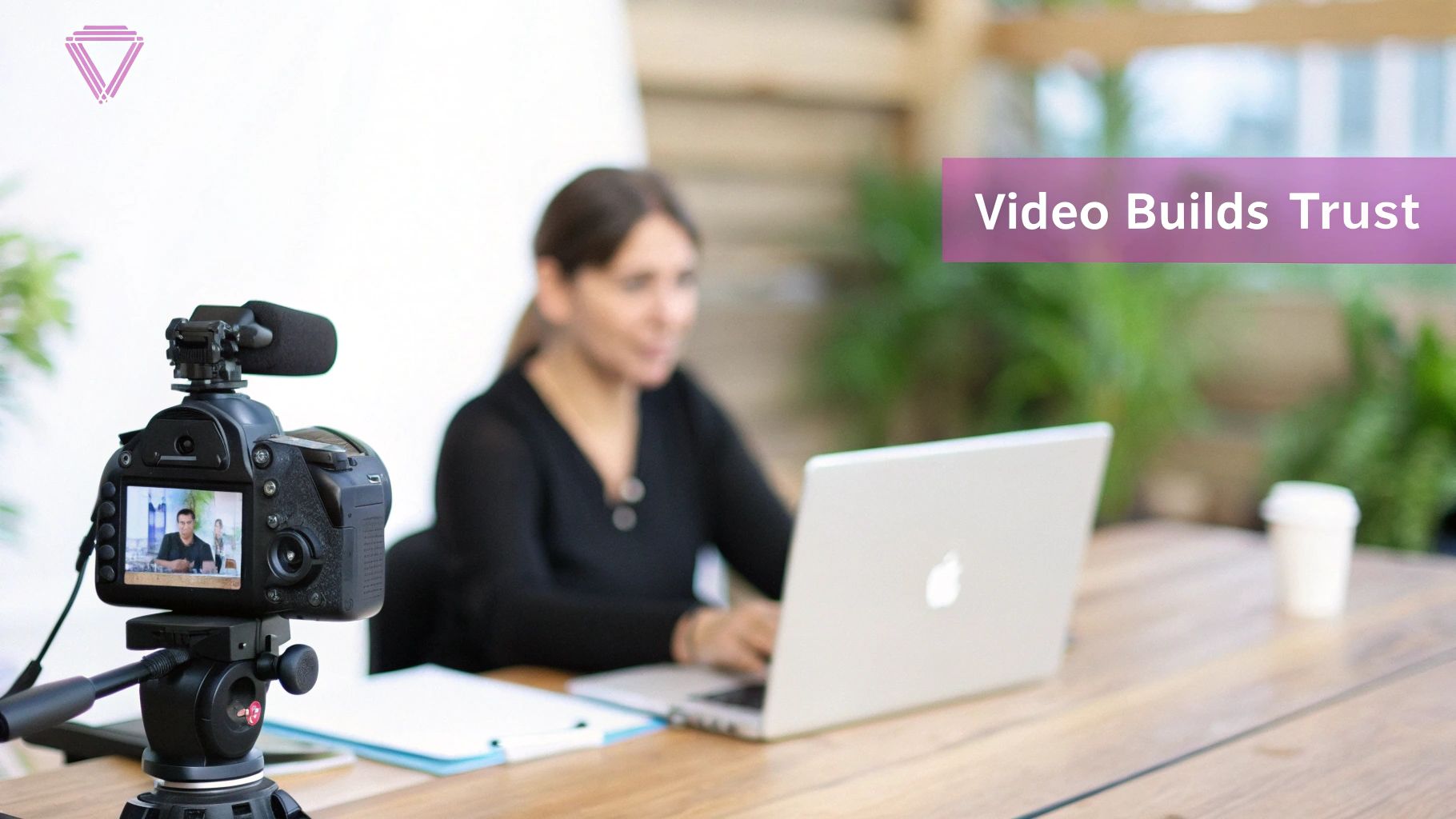
Video isn't just another content format. It’s a direct line to building trust, showing off what you know, and starting real conversations. A great article can prove you're knowledgeable, but a video shows who you are—your personality, your passion, and the way you explain complex ideas. It puts a face to the name.
That human element is the magic ingredient. It bridges the gap between a flat digital profile and the actual professional behind it, letting you build genuine connections that turn passive followers into a real community.
The Undeniable Power of Visual Storytelling
Be honest with yourself about your own scrolling habits. It’s movement that catches your eye, right? Our brains are wired to notice motion, and video taps directly into that instinct. That’s why learning how to post a video on LinkedIn is less about a technical skill and more about becoming a better communicator in the modern professional world.
The numbers don't lie. Video content has absolutely exploded on LinkedIn, and ignoring it means you're falling behind. According to industry reports, LinkedIn video posts generate 5 times more engagement than other content types. This isn't just a marginal improvement; it's a fundamental shift in how professionals connect. It's no surprise that marketers who use video grow revenue 49% faster than non-video users.
Key Takeaway: Video isn't just getting more eyeballs; it's fundamentally changing how we consume information and connect with peers on LinkedIn. It's hands-down the best tool you have for building genuine rapport and authority.
How the LinkedIn Algorithm Views Video
The LinkedIn algorithm has one primary goal: keep users on the platform as long as possible. Native video is its superstar player in this game.
When you upload a video file directly to LinkedIn—instead of just sharing a YouTube or Vimeo link—the algorithm gives it a serious boost in the feed. This means more visibility, more impressions, and a much better shot at reaching the people you want to see it.
The reason is simple: it’s rewarding what works. The algorithm tracks user behavior and sees people spending more time watching, commenting on, and sharing videos. So, naturally, it serves up more of them. By playing into this, you get a huge advantage.
- Increased Dwell Time: People naturally linger on a video longer than a text post. This sends a powerful signal to the algorithm that your content is high-value.
- Higher Engagement Rates: Video posts consistently earn more comments and shares, which the algorithm sees as a green light to show your post to an even wider audience.
- Builds Authority Faster: Demonstrating your expertise on camera is far more convincing than just writing about it. It’s a shortcut to establishing yourself as a go-to voice in your field.
At the end of the day, using video on LinkedIn isn't about chasing a fleeting trend. It's about aligning your content with what the platform and its users both want to see. That alignment is a cornerstone of any effective video content marketing strategy and is what transforms a simple post into a career-building tool.
Posting Your Video on LinkedIn: From Profiles to Company Pages
Alright, you've got your video ready to go. Now comes the fun part: getting it live on LinkedIn. The actual upload process is pretty straightforward, but the small decisions you make here can make a huge difference in who sees your video and how they react to it. The mechanics are nearly identical whether you're posting to your personal profile or a Company Page, but the strategy behind it should be completely different.
Think of it this way. For your personal profile, you might post a quick, 60-second vertical video sharing a spontaneous thought from a conference you just attended. The vibe is authentic and timely—you're building your personal brand.
For your company's page, however, you'd likely share something more polished, like a 3-minute, professionally shot horizontal video that walks a potential customer through a new feature. This isn't just a post; it's a brand asset meant to educate and build trust. The uploader handles both, but your caption, tags, and call to action will need to be tailored for each specific goal.
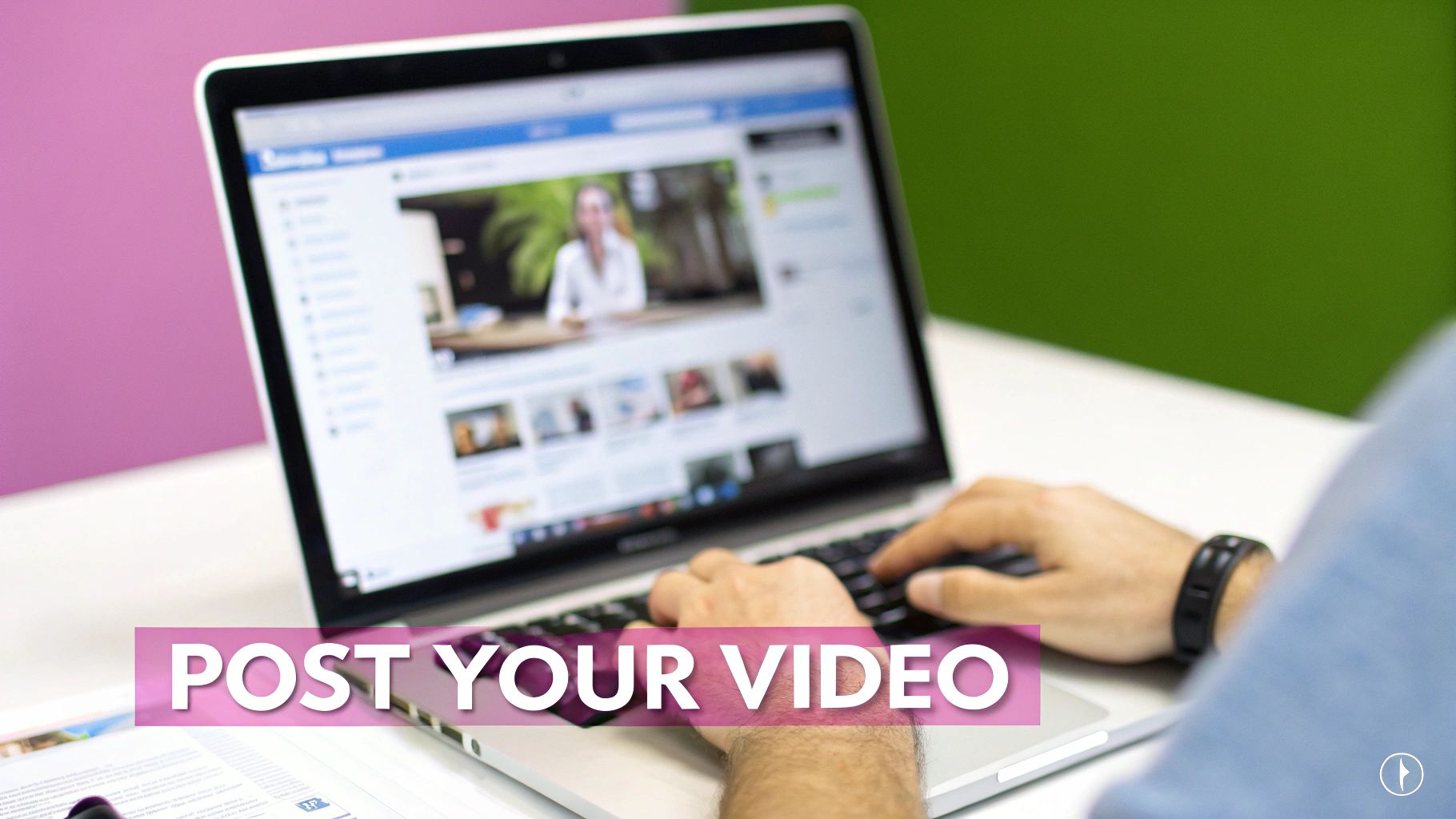
This simple "Start a post" box is where all the magic happens. It's your control center for making sure your video doesn't just get uploaded, but actually gets seen.
The Uploading Workflow
Whether you're on your computer or phone, you'll start at the "Start a post" field right at the top of your feed. Clicking it opens the composer, where you'll look for the media icon to select your video file from your device.
Once you’ve picked your video, LinkedIn starts processing it. This is a golden opportunity. Don't just sit and watch the progress bar. Use this time to write a killer caption. Your text is what gives people context and stops their scroll. A great post is critical, especially when you consider that video posts on LinkedIn get 5 times more engagement than simple text updates.
Let’s go back to that 60-second personal video. Here’s how you could frame it:
- Hook: "Just walked out of a keynote on AI in marketing, and one stat completely blew my mind…"
- Context: Quickly break down the statistic and explain why it matters for your industry.
- Call-to-Action: "What's the most surprising AI trend you're seeing? Drop a comment below."
This simple formula grabs attention, provides real value, and immediately encourages people to join the conversation.
Fine-Tuning Your Post Settings
Before you smash that "Post" button, a few final settings need your attention. These are the little details that help your video find the right audience and maximize its visibility.
First, who do you want to see this? For a personal profile, you can set the visibility to "Anyone" or just your "Connections." For the best possible reach, "Anyone" is almost always the right call. On a Company Page, your posts are automatically public to all your followers and page visitors.
Next, make smart use of the @mention feature. If your video talks about a report from another company or features a colleague, tag them! This sends them a notification and opens up your video to their entire network.
Pro Tip: Don't go crazy with the tags. One or two highly relevant @mentions are far more powerful than a dozen random ones. You want to add context and value, not look like you're spamming.
Finally, you’ll see options to add a thumbnail and captions. We'll dive deeper into these later, but my advice is to never skip them. A custom thumbnail is your video's first impression, and captions are essential for the huge number of people who watch videos with the sound off. If you want a more detailed look at the end-to-end process, this guide on how to post video on LinkedIn is a great resource. Each of these elements works together to turn a basic upload into a powerful piece of content.
Getting Your Video Specs Right for a Professional Look
Let’s talk tech specs. I know, it's not the most exciting part of creating content, but getting this wrong is one of the fastest ways to look unprofessional on LinkedIn. A video that's stretched, blurry, or has black bars on the side just screams amateur hour, and it'll kill your engagement before your message even has a chance.
Think of these specifications as the basic grammar of LinkedIn video. If you get them right, your content will look sharp and play smoothly for everyone, whether they're watching on a massive desktop monitor or scrolling on their phone.
Your Pre-Flight Technical Checklist
Before you hit that upload button, it pays to do a quick check of your video file. Running through these core requirements is your best defense against those frustrating technical glitches that can derail a great post.
Here’s a quick reference guide to keep on hand. Getting these details right from the start saves a ton of headaches later.
LinkedIn Native Video Technical Specifications
| Specification | Requirement |
|---|---|
| Duration | Between 3 seconds and 10 minutes |
| File Size | From 75 KB up to 5 GB |
| File Format | MP4 is highly recommended (though others like ASF, FLV, MOV are accepted) |
| Resolution | Min: 256×144, Max: 4096×2304 (Aim for 1080p) |
| Frame Rate | Between 10 fps and 60 fps (Standard 30 fps is perfect) |
| Aspect Ratio | Horizontal (16:9), Square (1:1), or Vertical (9:16, 4:5) |
While LinkedIn accepts a few file types, just stick with MP4. It’s the universal standard for a reason—it gives you a great balance of quality and file size. And speaking of visuals, it's a good idea to also get familiar with the best LinkedIn post sizes for maximum impact for all your content, not just video.
One of the biggest mistakes I see people make is exporting a video with a massive file size, thinking bigger is always better. Trust me, a 5 GB file is overkill. You can easily compress a high-quality 1080p video to a much more manageable size without any visible drop in quality. This means a faster upload for you and a smoother, buffer-free experience for your audience.
Why Aspect Ratio Is Your Secret Weapon in the Feed
Of all the technical details, the shape of your video—its aspect ratio—is arguably the most critical one for grabbing attention. With so many people browsing LinkedIn on their phones, you have to design your content for a vertical world.
A traditional widescreen (16:9) video looks great on a laptop, but on a phone? It shrinks down to a tiny letterbox, completely lost in the fast-scrolling feed.
This is where mobile-first formats win, every time:
- Square (1:1): This format is a fantastic all-rounder. It takes up 78% more screen space in the mobile feed than a horizontal video, making it instantly more visible. It looks great on both desktop and mobile.
- Vertical (9:16 or 4:5): This is the undisputed champion of mobile. A vertical video can fill the entire screen, creating an immersive experience that’s impossible to ignore. It’s perfect for those short, punchy clips designed to stop the scroll.
Let’s make this practical. Say you just recorded a great client testimonial. Instead of posting the raw horizontal footage, you could pull out the most powerful 30-second quote and reformat it as a vertical (9:16) clip. Add some bold captions, and suddenly you have a piece of content that's perfectly tailored to capture attention from mobile users.
This simple shift in shape can be a game-changer for your video’s reach and engagement. If you're wondering how to do this with your own videos, our guide on how to change the aspect ratio of a video breaks it down step-by-step.
How to Write a LinkedIn Post That Actually Gets Views
Your video might be a masterpiece, but if the text around it is an afterthought, you're pretty much guaranteeing it will flop. A great video needs a great post—one that stops the scroll, gives people a reason to care, and kicks off a real conversation.
Think of your post copy as the opening line in a discussion. You only get two lines to make your case before someone has to click "see more." In a feed that moves a mile a minute, those first few words are everything. They need to create instant curiosity.

Writing a Post That Drives Interaction
The best video posts all follow a simple formula: they hook the reader, add some context, and then tell them exactly what to do next. Don't just summarize your video. Your job is to complement it by offering a unique angle or asking a sharp question that the video answers.
This simple shift turns passive viewers into active participants. The goal isn't just views; it's comments, which the LinkedIn algorithm loves. In fact, research shows that posts with questions generate 1.65 times more comments than those without.
Here’s what every engaging video post needs:
- A Magnetic Hook: Start with a bold statement, a surprising stat, or a problem everyone in your audience recognizes. Make it impossible to just scroll past.
- Essential Context: Briefly explain what the video covers and why it’s important for them. Set the stage without giving away the good parts.
- Strategic Hashtags: Stick to 3 to 5 highly relevant hashtags. I find a mix of broad industry terms (like
#DigitalMarketing) and more niche topics (#B2BContentStrategy) works best for discovery. - A Clear Call-to-Action (CTA): Tell people what you want them to do. "Share your thoughts below" is a world away from just hoping they'll comment.
Why You Can't Skip Subtitles
One of the biggest mistakes I see people make is posting a video on LinkedIn without subtitles. The data doesn't lie: an estimated 85% of social media videos are watched with the sound off. If your message is all in the audio, most of your audience will miss it entirely.
Adding accurate, easy-to-read subtitles isn't just an accessibility nice-to-have; it's a fundamental part of any serious video strategy. It makes sure your message gets through, whether someone's in a noisy office, on the train, or just prefers watching silently.
A Quick Before-and-After Example
Let's look at how this all comes together. Imagine you just finished a 90-second video about common email marketing mistakes.
The "Before" Post (Weak and Generic):
"Check out my new video on email marketing mistakes. I cover some common pitfalls that many businesses fall into. #marketing #email #business"
This is completely forgettable. It gives you no reason to watch, provides zero context, and doesn't ask for anything.
The "After" Post (Strong and Engaging):
"Is your open rate stuck below 15%? You might be making one of these three 'harmless' email mistakes that are quietly killing your campaigns.
I spent the last week digging into why some emails fail while others fly, and the answer was surprisingly simple. In this 90-second video, I break down the exact issues and show you how to fix them.
Which of these have you struggled with the most? Let me know in the comments!
#EmailMarketing #MarketingStrategy #LeadGeneration #ContentMarketing"
See the difference? This version starts with a real pain point, builds curiosity, clearly states the value, and ends with a direct question. It’s not just a post; it's a conversation starter. This is how you don't just post a video on LinkedIn—you make it count.
Automating and Scaling Your LinkedIn Video Strategy
Let's be honest: keeping a steady flow of video content on LinkedIn is a massive commitment. For most people, the constant cycle of brainstorming, filming, editing, and posting is enough to cause burnout. Consistency feels like a mountain you can never quite climb.
This is where you need to shift from brute force to a smarter, more automated workflow. It’s the difference between being a content creator and a strategic authority.
Imagine you just wrapped up a one-hour webinar or a great podcast interview. That single recording is a goldmine. Instead of letting it sit on a hard drive, you can use smart tools to slice it into a whole week's worth of high-impact, short-form clips—all perfectly sized and styled for the LinkedIn feed.
This isn’t about pumping out generic, robotic content. It’s about working smarter. A good system can find the most compelling moments in your long-form video, automatically generate slick, branded captions, and deliver five or more distinct, 90-second clips from that one recording.
From Manual Grind to Intelligent Workflow
The old way of editing video is a total time-sink. You're manually scrubbing through footage, painstakingly snipping out every "um" and "ah," and then spending what feels like an eternity typing out subtitles. Automation completely flips that script.
Here's a quick look at how the old, manual grind stacks up against a modern, automated process:
| Manual Process (Hours) | Automated Process (Minutes) |
|---|---|
| Finding Clips: Rewatching an entire hour of video just to find a few good nuggets. | Intelligent Identification: AI scans your video and flags the key topics and most engaging segments for you. |
| Editing: Manually splicing clips and cleaning up filler words and awkward pauses. | Automatic Polish: Filler words are snipped out, and the audio is cleaned up to sound crisp and professional. |
| Captioning: Tediously typing and timing every single word for your subtitles. | Animated Subtitles: AI generates and animates captions instantly, using your own brand colors and fonts. |
| Scheduling: Logging into LinkedIn every single day to upload and write a new post. | Bulk Scheduling: Plan and schedule your entire month's video content in one sitting. |
This isn't just a small time-saver; it’s a fundamental change in how you operate. You can pour your energy into creating one amazing long-form piece of content, knowing the distribution and repurposing are already handled. It gives you a serious edge, allowing you to generate a week's worth of content in the time it takes others to manually produce a single clip.
Key Insight: True scalability isn’t about posting more; it’s about building systems that multiply the value of every single thing you create. Automation is the engine that makes that happen.
Building a Content Machine That Runs Itself
A truly effective strategy goes beyond just saving time on editing. It’s about creating a reliable content pipeline that works for you, even when you're not working. By linking intelligent repurposing with a scheduling tool, you can build a content calendar that guarantees you're always visible without the daily scramble.
Here’s what that looks like in the real world:
- Upload Your Source: Drop your one-hour podcast interview file into a platform like Swiftia.
- Generate Clips: The AI gets to work, automatically identifying 5-7 potential short clips by pinpointing the most powerful quotes and interesting questions.
- Brand and Refine: With one click, you apply your pre-set branding template, which adds your logo and animated captions. You can then make a few quick tweaks in minutes, not hours.
- Schedule for the Week: Send all five clips straight to your LinkedIn queue, scheduling them to post automatically throughout the week. You’re now top-of-mind with your audience all week long.
The payoff for this consistency is huge. Social media management platforms have found that brands with a regular posting schedule see up to 30% higher engagement year-over-year. You're no longer just learning how to post a video; you're building a system for sustained growth that reinforces your expertise and keeps your network hooked.
For any professional serious about building influence, figuring out how to automate social media posts is the next logical move. It's what separates the overwhelmed content creator from the thought leader whose content is out there working for them around the clock.
Common Questions About Posting Videos on LinkedIn
Even with a solid plan, you're bound to run into questions as you get deeper into your LinkedIn video strategy. This is where we'll tackle some of the most common sticking points and uncertainties I see people struggle with. Getting these details right from the start saves a ton of headaches later.
Let's clear up these common hurdles so you can get back to creating great content.
What Is the Ideal Length for a LinkedIn Video?
This is probably the number one question I get asked. While LinkedIn technically lets you upload a native video up to 10 minutes long, that doesn't mean you should. Far from it, actually.
In my experience, the sweet spot for most videos is much, much shorter. Think under two minutes. These bite-sized videos consistently get higher completion rates and see way more engagement. The trick is to deliver a potent dose of value and get out before your viewer's thumb gets itchy to scroll on.
A good rule of thumb is to be as brief as you can be while still being effective. If you can say what you need to say in 90 seconds, don't stretch it to three minutes just because you can. Respect your audience's time, and they'll reward you for it.
Can I Edit a Video After I Post It?
Here’s a critical detail you don't want to learn the hard way: once a video is live on LinkedIn, the video file itself is locked in. You cannot edit or replace it. If you catch a mistake after publishing, your only move is to delete the entire post and start over with the corrected version.
You can, however, edit the text that accompanies your video. That means you can fix a typo in your description, swap out hashtags, or tag different people and companies. My advice? Always give your video one last final watch-through before you hit that post button.
How Often Should I Be Posting Videos?
Consistency beats frequency. You don’t need to pump out videos every single day to build momentum. It's all about finding a sustainable rhythm that you can stick with.
That said, there's some interesting data on what works best. An analysis of over 2 million posts showed that accounts posting 2-5 times per week saw each video reach an average of 4,000 more people. Their engagement rates were also high enough to spark real conversations. If you're curious, you can dig into more insights on what drives LinkedIn performance to really dial in your schedule.
This is where automation can be a game-changer, helping you turn one long video into a steady stream of content.
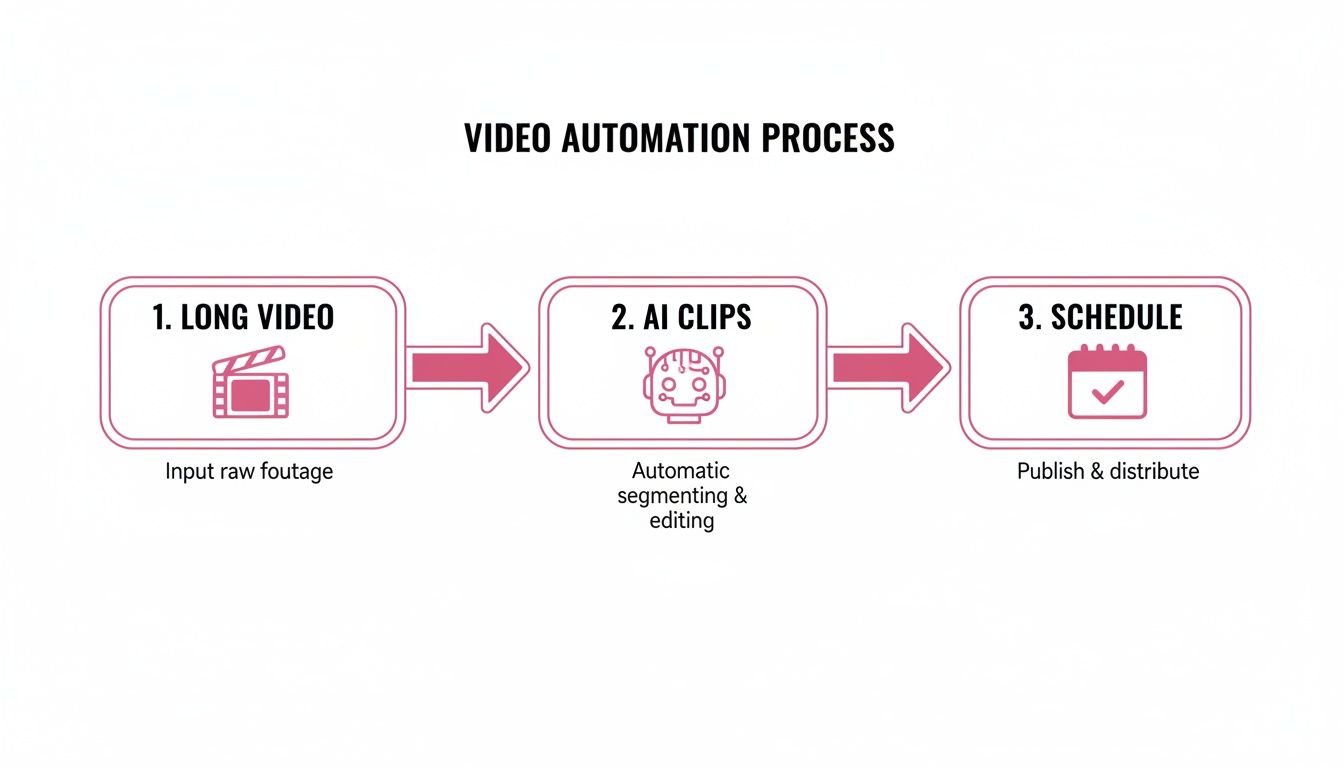
A workflow like this is how you maintain an optimal posting frequency without burning out—by smartly repurposing a single recording into a whole week's worth of posts.
Does It Matter If I Post a YouTube Link Instead of Uploading?
Oh, it matters. It matters a lot.
When you just drop a link to a YouTube or Vimeo video, LinkedIn treats it like any other external link. The platform wants to keep users on its site, so it naturally throttles the reach of posts that send people away.
Uploading your video file directly to LinkedIn, which we call a native video, is always the way to go. Native videos autoplay silently in the feed, which is incredibly effective for grabbing attention and stopping the scroll. It's a simple choice that can make a massive difference in your video's reach and overall performance.
Ready to stop the manual grind and start scaling your LinkedIn video strategy? Swiftia transforms your long-form content into a pipeline of engaging, ready-to-post clips in minutes. Try it for free and see how easy it is to build a consistent, high-impact video presence. Start creating with Swiftia today.