Posting a video on LinkedIn is about so much more than just uploading a file. It’s a chance to truly redefine your professional presence on the platform. The process is straightforward—create a post, select the video icon, pick your file, write a killer caption with the right hashtags, and hit publish. But the why is what really matters.
Why Your LinkedIn Strategy Needs Video
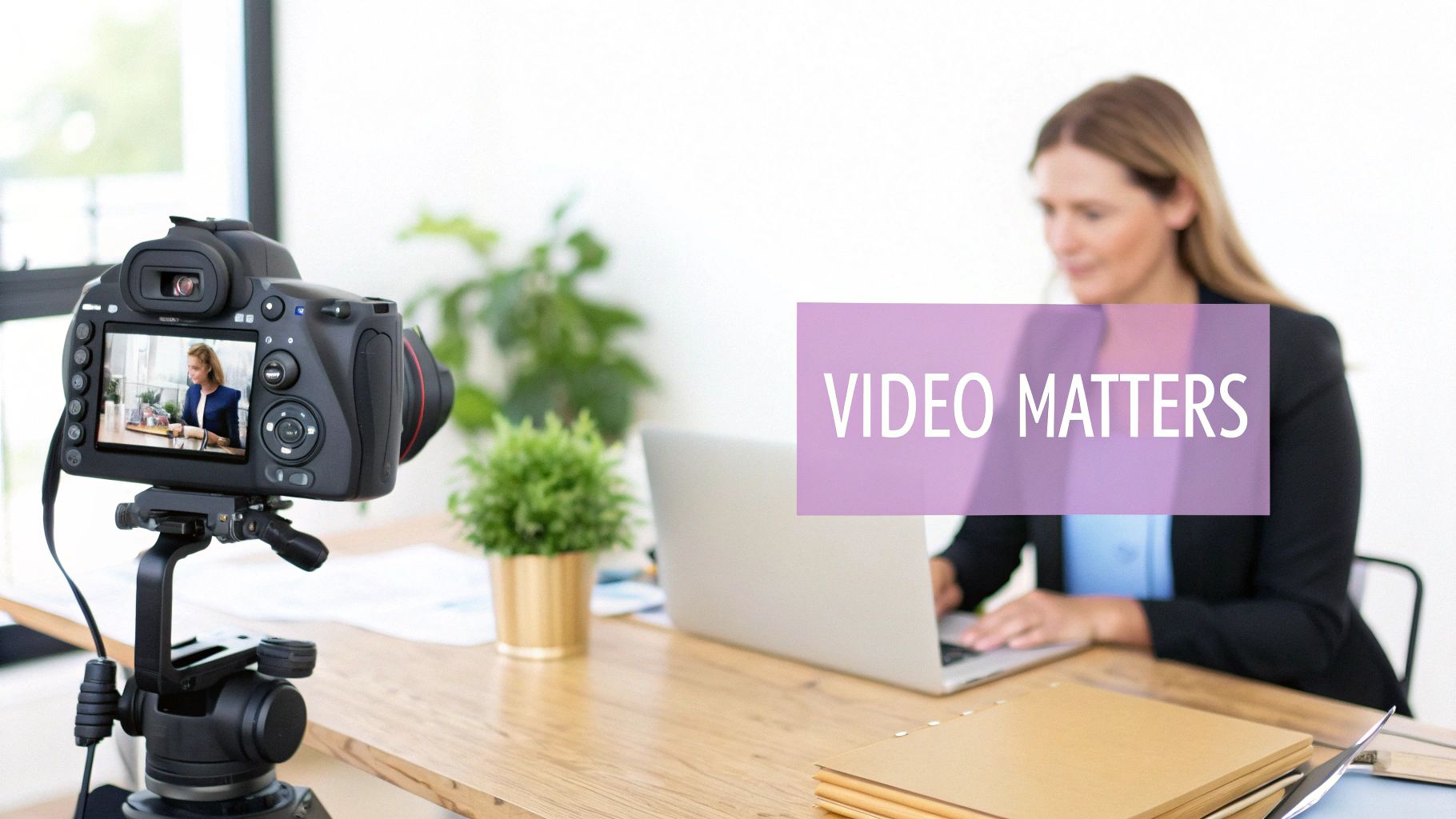
In a feed crowded with text updates and static images, video is your secret weapon for building authority and making real connections. It elevates your profile from a simple resume into a living, breathing portfolio where your personality and expertise can finally take center stage.
Think about it. A well-written post sharing industry insights is great, but a short video of you explaining that same concept? That’s next level. It adds a layer of authenticity that text just can't match. People see your passion and hear your conviction, building trust far more quickly than any article could.
The Impact on Professional Branding
Video content isn't just about getting seen; it's about being remembered. It gives you a powerful platform to:
- Humanize your brand. For example, a "day in the life" video of a team member makes your company feel more genuine and relatable than a generic mission statement.
- Demonstrate your expertise. A quick tutorial on a new software feature, a project walkthrough, or a market analysis video doesn't just list your skills—it proves them.
- Drive real business goals. Whether you're trying to generate leads or attract top talent, video is incredibly effective at guiding your audience toward taking a specific action.
Video has become a non-negotiable part of a winning LinkedIn strategy. According to LinkedIn's own data, posts with video get 5 times more engagement than other content types. And for B2B marketers, the numbers are even more compelling: buyers retain 95% of a message when they watch it in a video, compared to just 10% when reading it in text. That's a huge difference.
By making video a core part of your content, you stop just participating on LinkedIn and start leading the conversation in your industry. To get the most out of it, you'll need a solid strategy for posting videos on LinkedIn that drives results.
Understanding these benefits is the first step. You can also learn more about how to increase social media engagement in our detailed guide.
Getting Your Video Ready for a Flawless LinkedIn Upload
Ever upload a video only to see it come out blurry or fail entirely? It's a frustrating experience that can make your brand look unprofessional. A fantastic video idea can be completely undermined by a technical glitch, so a quick pre-flight check is one of the most important things you can do.
Getting these technical details right from the start means your content will look sharp and play smoothly for everyone, no matter what device they're using. LinkedIn has its own set of rules for video, and following them is key to a good viewer experience.
Nail the Technical Specs
Before you hit "post," make sure your video file is good to go. LinkedIn is pretty specific about what it wants, and getting this right is the difference between a smooth upload and a failed one.
To save you time, here's a quick-reference table with the most critical requirements.
| LinkedIn Native Video Specifications |
| :— | :— |
| Specification | Requirement |
| Maximum File Size | 5GB |
| Minimum Duration | 3 seconds |
| Maximum Duration | 10 minutes |
| Recommended Format | MP4 |
| Resolution Range | From 256×144 to 4096×2304 |
| Aspect Ratio Range | 1:2.4 to 2.4:1 (Horizontal, Square, Vertical) |
| Frame Rate | 10 to 60 frames per second (fps) |
| Bitrate | 192 kbps to 30 Mbps |
Sticking to these specs ensures your video looks as good on LinkedIn as it did on your computer. You can always check the full list over at LinkedIn's official video specifications if you run into any trouble.
A few key points to keep in mind:
-
File Size & Format: While the 5GB limit is generous, you'll have a much easier time uploading a smaller file, especially on a weaker internet connection. Always stick with the MP4 format; it's the gold standard for a reason and works flawlessly on LinkedIn. If you're dealing with a massive file, many of the compression techniques are universal. We cover some useful ones in our guide on how to upload large videos to YouTube.
-
Video Length: You have a window of 3 seconds to 10 minutes. This gives you plenty of room for everything from a quick, punchy update to a more in-depth tutorial or interview clip.
-
Resolution & Shape: Aim for 1920×1080 (1080p) for crisp quality. LinkedIn is also incredibly flexible with video shape, accepting everything from wide-screen to vertical formats (1:2.4 to 2.4:1). This means you can easily repurpose content from other platforms.
My Two Cents: Don't sleep on square (1:1) or vertical (4:5 or 9:16) video. From my experience, these formats perform much better in the mobile feed because they take up more screen real estate and stop the scroll.
How to Post a Video on Desktop and Mobile
Uploading a video to LinkedIn is pretty simple, but the experience is a bit different if you're on your computer versus your phone. Knowing the nuances of both helps you get your content out there, whether you're meticulously planning posts at your desk or sharing something on the fly.
Of course, a great post starts with a video file that actually works on the platform. Think of it this way: you need to check the format, resolution, and aspect ratio before you even think about hitting upload.
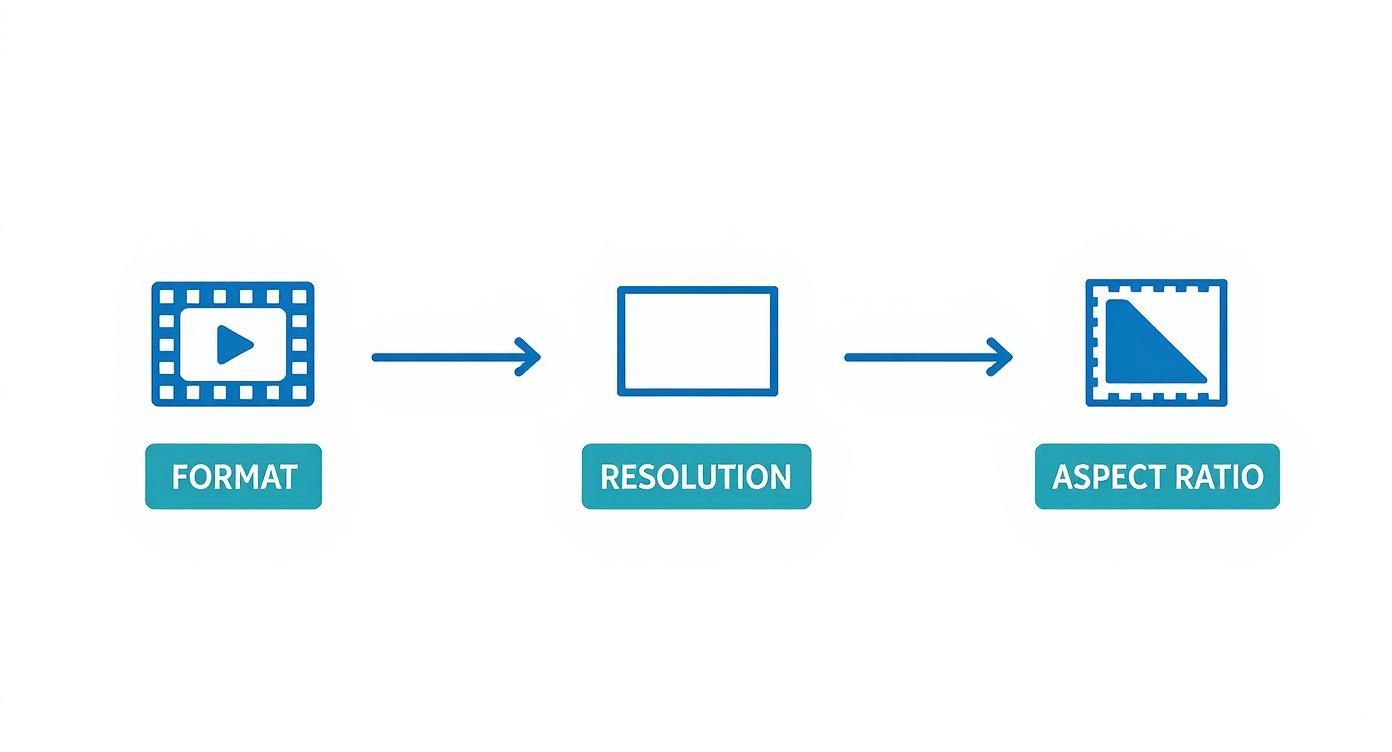
Getting these three things right from the start saves you a ton of headaches with upload errors and ensures your video looks crisp and professional.
Posting from Your Desktop Browser
The desktop version gives you the most control, making it my go-to for any pre-planned content. To get started, just head to your LinkedIn feed, click "Start a post," and find the small video icon in the media options. That'll pop open your file explorer so you can grab the video you want to share.
While your video is processing, you can get to work on the post itself. This is where you write that killer hook to stop the scroll, add strategic hashtags to broaden your reach, and tag anyone you mentioned. The desktop layout gives you plenty of room to craft your message without feeling cramped.
Before you hit "Post," you’ll see a couple of crucial final options: a thumbnail and a caption file. Don't blow past these.
- Custom Thumbnail: Your thumbnail is your video's first impression. Pick a compelling frame that tells people exactly what they're about to watch. A good one can make a huge difference in whether someone clicks play or keeps on scrolling.
- Captions: Did you know that a significant number of social media videos are watched with the sound off? Uploading an SRT file isn't just a nice-to-have; it's essential for accessibility and engagement.
A polished post isn't just about the video itself—it's the whole package. Taking a few extra seconds on desktop to nail these details shows your audience you care about quality, and they'll notice.
Sharing Directly from the LinkedIn Mobile App
The mobile app is built for speed, which makes it perfect for those "in-the-moment" posts or when you want to share something right from your camera roll.
Just tap the "Post" button in the bottom navigation bar and select the "Video" option. This will pull up your phone’s gallery. Once you've picked your clip and tapped "Next," you're on the composer screen. Here, you can write your text and add hashtags, just like you would on your computer.
The mobile interface is definitely more stripped-down, but that’s the point. It's designed to get your content live quickly. Think of it as your best tool for covering live events or jumping on a timely industry conversation when you aren't tethered to your desk. While you lose a few of the bells and whistles, like uploading a custom thumbnail, the convenience is a fair trade-off for staying active in your network's feed.
Writing a Post That Makes People Watch and Engage
You can have the most polished video in the world, but if the text around it is an afterthought, it’s going to get lost in the feed. The copy is your video's wingman—it’s what stops the scroll and gives people a compelling reason to press play.
That first line is everything. It's your one shot to interrupt someone's mindless scrolling and make them curious. For example, instead of "Here's a video about marketing trends," try "90% of marketers are getting this trend wrong. Here's why…"
Mastering Your Post's Structure
Once you've hooked them, the rest of your post needs to deliver. Keep your paragraphs short and punchy. Nobody on LinkedIn wants to read a wall of text, so use bullet points or numbered lists to highlight your key takeaways. Make it scannable.
Before hitting that "Post" button, think about who needs to see this.
- Tag relevant people and companies. If you collaborated with a colleague or are featuring a client's success story, @mention them. This not only gives them a heads-up but also puts your video in front of their audience.
- Use strategic hashtags. Aim for a smart mix. Combine broader industry tags (like
#DigitalMarketing) with more focused, niche ones (like#B2BVideoStrategy) to make sure your content finds the right people.
The goal here isn't just to broadcast your message; it's to spark a conversation. A thoughtfully written post with the right tags invites people to chime in, turning passive scrollers into engaged members of your community.
Why Captions Are Non-Negotiable
Okay, let's talk about the video itself. Captions are not optional anymore. Think about it: how many people are scrolling through LinkedIn at their desk, in a coffee shop, or on a train? They're watching with the sound off. No captions means no message.
Uploading an SRT file with your video is the standard way to ensure your message lands, no matter the viewing environment. It’s a simple step that shows you respect your audience's time and makes your content more accessible. The payoff is real: research shows that 80% of consumers are more likely to watch an entire video when captions are available.
If you want to take it a step further, you can use a tool to add stylized text to your video to really make your key points stand out.
Turning Your Video Post into a Long-Term Strategy
Posting one video is a good start, but building a real professional presence on LinkedIn demands a more deliberate, consistent plan. Shifting your mindset from one-off uploads to a sustainable content strategy is what truly builds authority and trust with your audience over time.
This means you have to think beyond just the mechanics of uploading. The real question is why you're posting that video in the first place. Your goal should drive every decision, especially how long the video is. For example, a quick, punchy 30-second clip is fantastic for grabbing attention and building brand awareness, whereas a deeper 3- to 5-minute tutorial can position you as an expert.
It's About Authenticity, Not Perfection
While there's a time and place for slick, high-production videos, the LinkedIn feed often rewards authenticity more than polish. People on the platform are looking for genuine insights and relatable stories, not commercials.
Honestly, a quick video shot on your phone sharing a valuable tip can often perform better than a heavily produced corporate video. Why? Because it feels more personal, direct, and trustworthy. The key is finding a balance that feels right for you and your brand.
Pro Tip: Don't let the quest for perfection stop you from posting. Your unique perspective is far more valuable than a perfect lighting setup. Authenticity is what forges the strongest connections.
Use Your Analytics to Get Smarter
LinkedIn gives you a treasure trove of data for every video you post. These analytics are your direct line into what your audience actually wants. You should be paying close attention to metrics like view count, likes, comments, and viewer demographics.
These numbers tell a story. If you see that your short, informal "talking head" videos consistently get more comments from your target audience, that’s a massive clue. Lean into what works. This data-driven approach takes the guesswork out of your content creation.
Recent data shows that video posts on LinkedIn are now hitting an average engagement rate of 5.60%—a huge jump from previous years. This proves just how essential native video has become. You can dig into more stats about the rise of LinkedIn video engagement on Socialinsider.io. By analyzing your own performance, you can continuously refine your strategy and make every post more impactful than the last.
Got Questions About LinkedIn Video? I've Got Answers.
When you're first diving into LinkedIn video, a few common questions always seem to pop up. I've heard them all, so let's tackle the big ones head-on and get you posting with confidence.
How Long Should My LinkedIn Video Be?
Technically, LinkedIn lets you upload a video that's up to 10 minutes long. But let's be realistic—who has that kind of time on a professional network?
From what I’ve seen, the real sweet spot for engagement is somewhere between 30 seconds and 2 minutes. This is the perfect window to grab attention, deliver value, and get people to react before they scroll on. If you're sharing a quick company update or a hot take, keeping it under 60 seconds is your best bet. For a more detailed tutorial or a mini-case study, you can push it to 2-3 minutes, but you absolutely have to hook them in the first few seconds.
Oops, I Made a Mistake. Can I Edit My Video After Posting?
This is a classic "gotcha" moment. The short answer is no, you can't edit the video file itself once it's been uploaded.
What you can do is edit the accompanying text, tweak your hashtags, or change who you've tagged. Just hit the three-dot menu (…) on your post and choose 'Edit post.' If the video file is the problem—maybe a typo on a graphic or a weird jump cut—you'll have to delete the entire post and start over with the corrected version. It's a pain, which is why a quick double-check before you hit "Post" is always worth it.
Why does my video look blurry? This is usually a compression issue. LinkedIn, like all platforms, compresses video to save space. To get the best result, always give it a high-quality file to work with. Uploading in at least 720p is a must, but 1080p is even better.
And one final, crucial tip: always upload your video directly to LinkedIn. Sharing a YouTube or Vimeo link is a surefire way to kill your reach. The algorithm heavily favors native video, rewarding it with far more visibility in the feed.
Tired of the manual grind of turning long webinars or interviews into bite-sized LinkedIn clips? With our service, you can automatically find the best moments, add captions, and schedule everything out. It’s the fastest way to get more mileage out of your content. See how it works at https://swiftia.io.