Finished a great interview recording, only to find it riddled with "ums," "ahs," and "you knows"? Or maybe you have a perfect product demo that's now outdated because of an old logo plastered in the corner. These are the exact moments when knowing how to cleanly remove words from a video becomes an essential editing skill.
This isn't just about making things look or sound pretty. Polishing your content has a direct line to how well your audience engages with it and understands your message. When you cut out those verbal stumbles, the speaker instantly sounds more confident and authoritative. Likewise, getting rid of old or distracting on-screen text keeps your visuals sharp, current, and focused on what matters now.
Why You Might Need to Remove Words From a Video
A clean, polished video builds trust and credibility. When you take the time to remove unnecessary words—whether they’re spoken or written—you're actively improving the viewer's experience.
It’s a common need that pops up in a lot of different situations. I’ve seen it countless times, from quick social media clips to high-stakes corporate presentations.
Polishing for Professionalism and Clarity
Think about the last truly professional video you watched. It likely flowed seamlessly, without any awkward pauses or distracting text. That’s the goal. Here are a few of the most common reasons editors dive in to remove specific words:
- Removing Filler Words: Cutting out all the "likes," "ums," and "you knows" is probably the most frequent request. It can make the final cut of an interview or podcast sound dramatically more polished and professional.
- Correcting Mistakes: People misspeak. It happens. Instead of scrapping an entire take or scheduling a re-shoot, you can often just snip out the incorrect phrase and save a ton of time and money.
- Updating Branded Content: This is a big one for marketing teams. A video might be evergreen, but the on-screen URL is old, a product name has changed, or a past promotion is still visible. Removing that text can give perfectly good content a whole new life.
- Improving Viewer Focus: Sometimes the screen is just too busy. Unnecessary captions, intrusive watermarks, or other text overlays can clutter the frame and pull your audience's attention away from the main subject.
Before we get into the "how," it's helpful to see where these needs typically come from.
| Removal Type | Common Use Case | Primary Goal |
|---|---|---|
| Spoken Word Removal | Interviews, podcasts, public speaking recordings | Improve speaker clarity and confidence |
| On-Screen Text Removal | Repurposing marketing videos, updating tutorials | Correct outdated information, remove branding |
| Filler Word Removal | Unscripted vlogs, corporate training videos | Increase professionalism and tighten pacing |
| Caption/Overlay Removal | Localizing content, removing distracting elements | Enhance visual focus and adapt for new audiences |
Removing these unwanted elements is about delivering a clear, concise, and professional message that actually holds your audience's attention.
The sheer volume of video content being produced today makes these skills more important than ever. Video is projected to make up a staggering 82% of all global internet traffic, which means the demand for high-quality, polished content is through the roof. This incredible scale is what pushes the need for faster, more efficient editing workflows. You can dig deeper into video marketing trends to see the full picture.
Ultimately, whether you're cleaning up a quick social media ad or a detailed corporate training module, the mission is the same. You want your message to land perfectly. Mastering how to remove both spoken and visual words is a fundamental skill for making your content stand out and achieve its purpose.
Editing Spoken Words Out of Your Audio Track
We’ve all been there. You nail the perfect take, but in the edit, you notice a handful of "ums," a repeated phrase, or a factual slip-up. These little verbal stumbles can instantly pull a viewer out of the moment and chip away at your video's professionalism. Polishing your audio track isn't just about sounding good; it's about making sure your message lands with clarity and confidence.
You generally have two ways to tackle this: the old-school, hands-on manual approach, or the faster, AI-driven route. The best choice really boils down to your specific project, how much time you have, and the level of precision you need.
The Manual Method: Precision and Control
If you're a perfectionist or working on a high-stakes project, nothing beats the control of manually editing in a Digital Audio Workstation (DAW). Tools like Adobe Audition or the free and powerful Audacity give you surgical precision over every single sound wave.
The process is pretty straightforward once you get the hang of it. You’ll be looking at the audio waveform, and with a bit of practice, you'll start to recognize the visual signature of filler words. Those pesky "ums" and "ahs" often look like flat, low-energy blobs. You simply find the word, make a clean cut at the start and finish, and lift it out.
But here’s the crucial part: just deleting the word leaves a dead, unnatural silence that screams "EDIT!" To make it seamless, you need to patch that gap with room tone—the subtle, ambient sound of the room you recorded in. By copying a tiny piece of this background sound and pasting it into the empty space, the edit becomes completely invisible to the ear.
A study on public speaking found that audiences often see speakers who lean on filler words as less credible and organized. So, cleaning them up isn't just vanity; it directly affects how your message is perceived.
While you're in there cleaning up spoken words, it’s a great time to also apply techniques for removing background noise. A clean audio foundation makes every other edit you do that much more effective.
The AI-Powered Approach: Speed and Efficiency
For a lot of us, especially when dealing with long-form content like podcasts or webinars, the manual method is a time-sink we just can't afford. This is where AI tools have completely changed the game, giving us a way to remove words from video audio without spending hours hunched over a waveform.
AI-powered editors flip the script entirely. Instead of editing audio, you edit a transcript. The tool generates a text version of your video's dialogue, and you make your changes there.
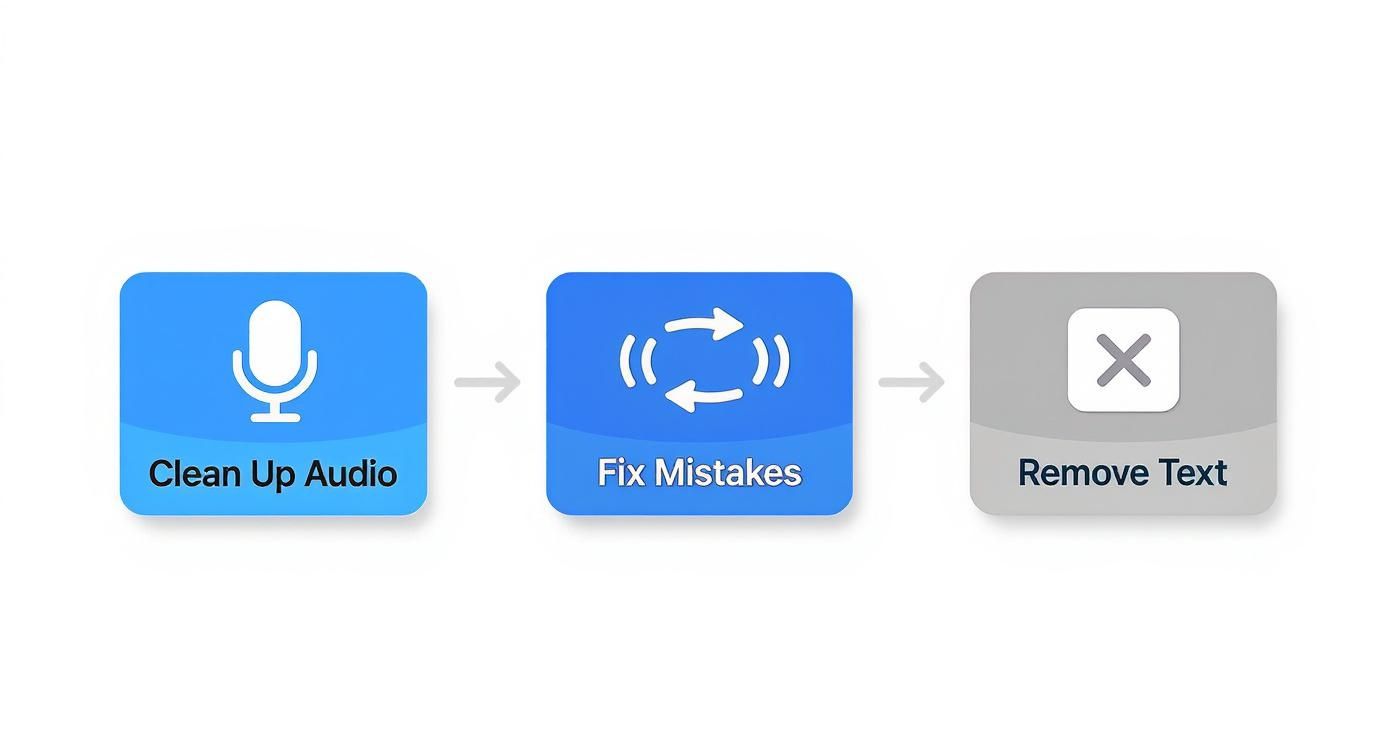
This workflow is all about getting the foundation right first—clean up the audio, fix mistakes, and then worry about the visuals.
Think about it this way. Let's say you just wrapped an hour-long interview and realized you said the word "like" about 50 times.
- Practical Example: With an AI editor, you can just type "like" into a search bar. The tool will highlight every single time you said it. From there, you can hit a "delete all" button, and the software automatically snips out every corresponding audio segment from your video. It's that simple.
This is a massive time-saver. Swiftia's Filler Word Removal Algorithm automates this whole process. Instead of hunting down every "um," "ah," and "you know," you can eliminate them all in seconds. This instantly tightens up your pacing and makes the speaker sound far more articulate. This level of automation provides a huge advantage over tools that still require a lot of manual clicking or have less accurate detection. We designed our tools for pure efficiency so you can focus on your story, not your stumbles.
Erasing On-Screen Text and Visual Overlays
Sometimes the words you need to remove aren't spoken—they’re staring right at your audience. On-screen text, pesky logos, or outdated lower-thirds can clutter the frame and distract from your actual message. Getting rid of these visual elements is a whole different ballgame than editing an audio track.
The real challenge is making the "fix" completely invisible. You want it to look like the text was never there to begin with, which gets tricky fast, especially if you're dealing with moving backgrounds or complex textures.
Simple Fixes for Static Text
For basic jobs, you don't always need to break out the heavy-duty software. If the unwanted text is hugging the edge of the frame, a simple crop might be all you need. It's a surprisingly effective way to remove words from a video as long as you can live with a slightly different aspect ratio.
Another quick-and-dirty method is to apply a subtle blur. This works best for text that isn't the main focus, where a soft blur is less distracting than the words themselves. But let's be honest, both cropping and blurring are band-aids; they just won't work for prominent or centrally located text.
Advanced Techniques for a Flawless Finish
When a simple crop or blur looks amateurish, it’s time to call in the big guns. You need tools that can intelligently rebuild the background that was hiding behind the text. This is where modern video editing software really earns its keep.
Tools like Adobe After Effects have a feature called Content-Aware Fill that feels like magic. It analyzes the pixels around the text you want to get rid of and then generates brand-new pixels to fill that space.
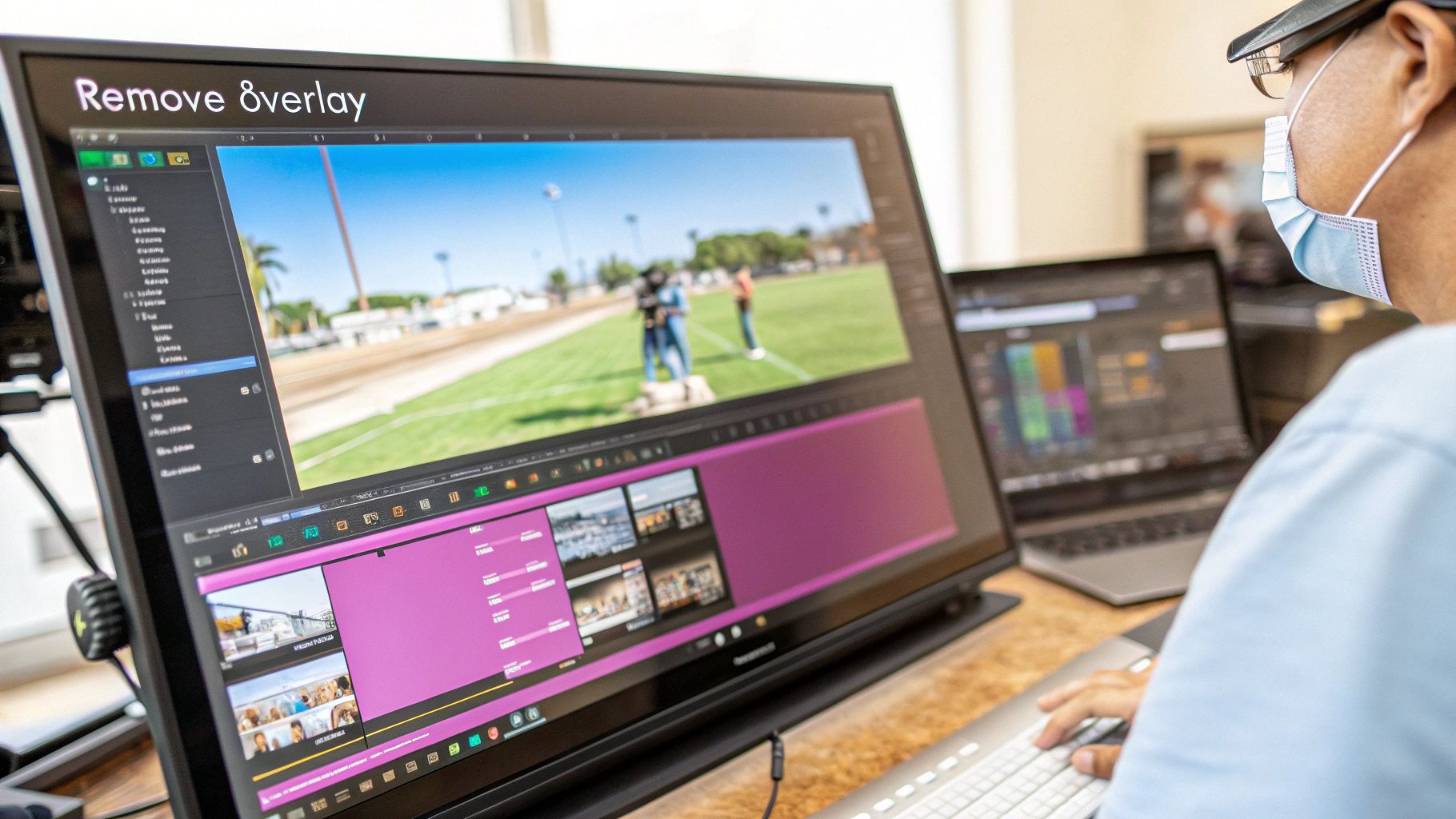
Practical Example: Let's say you have an amazing product demo, but it’s got an old company logo slapped in the bottom corner. With Content-Aware Fill, you'd just draw a mask around that logo. The software then looks at the surrounding frames to figure out what the background should be—whether it's a desk, a field, or just a solid color—and essentially paints over the logo as if it was never there. It even works if the camera is moving.
This kind of technology is what separates a decent edit from a truly professional one. You're not just covering something up; you're genuinely erasing it from the scene.
The Rise of AI in Visual Editing
The demand for this level of editing power has kicked off some serious innovation. The global market for Video Object Removal AI technology has already hit an estimated $1.27 billion, which shows just how much creators and businesses are leaning on these tools. If you're curious, you can dig deeper into the numbers with this recent industry analysis.
AI is rapidly turning what used to be a painstaking, frame-by-frame manual process into an automated one. This makes high-quality video editing far more accessible than it used to be.
The latest AI video editors are pushing this even further. They can automatically detect and remove text, even in tough situations with moving backgrounds or a shaky camera. For creators, this means you can remove words from video files faster and with more precision than ever, transforming a tedious chore into just another step in the workflow.
Choosing Your Toolkit: Manual vs. AI-Powered Solutions
When it's time to remove a word or phrase from your video, you’re at a crossroads: do you go in surgically with manual tools, or do you let an AI do the heavy lifting? The honest answer is, it depends. There’s no single "best" way—it's all about balancing your need for precision against your need for speed.
https://www.youtube.com/embed/CD1tvn6scLw
Think of it like this: manual editing gives you a scalpel, while AI offers a powerful, automated assembly line. For a high-stakes commercial where one slightly off-key edit could ruin the entire feel, the scalpel is your best friend. But for a two-hour podcast recording littered with "ums," the assembly line is a lifesaver.
When to Go Manual
The manual path is for the perfectionist, the artist, and anyone working on a project where every detail counts. It's about having total command over the final product, even if it takes a lot more time.
- High-Stakes Projects: If you're working on a polished brand film or a cinematic ad, manually cutting a single flubbed word is the only way to guarantee a seamless, invisible edit.
- Complex Audio: Picture a speaker at a live event with unpredictable crowd noise in the background. A human editor can navigate that sonic landscape with a nuance that algorithms might miss, preserving the ambiance while cleaning up the speech.
- Artistic Control: Sometimes, it's not just about removing a word but about refining the rhythm of speech. Manual editing lets you micro-manage the pacing to preserve a speaker’s natural cadence in a way AI might not understand.
When to Use AI
AI solutions are built for one thing above all else: efficiency. They excel at processing large volumes of content at a pace no human can match. In fact, for certain workflows, AI can slash editing time by over 70%.
Practical Example: For a 90-minute webinar recording, an AI tool can find and zap every single "um," "ah," and "you know" in a matter of minutes. That same cleanup job could easily tie up a human editor for several painstaking hours. In this scenario, AI isn't just an option; it's the only practical choice.
As you explore AI, remember that the quality of its word detection hinges on its transcription engine. Looking into the best speech-to-text software is a great starting point, as a better transcript means a cleaner edit. We also have a guide on the best AI tools for video editing that dives deeper into what’s out there.
Many AI tools are great, but some offer unique advantages. Our Filler Word Removal Algorithm, for example, is exceptionally accurate. It goes beyond just "ums" and "ahs" to catch repetitive phrases, giving you a much more thorough cleanup in one pass. This level of accuracy means less time spent double-checking the AI's work, which is a huge win for busy creators.
Manual Editing vs AI Tools: A Comparison
To help you decide at a glance, this table breaks down the core differences between the two approaches. It contrasts the key characteristics of manual and AI-powered video word removal to help you choose the best method for your needs.
| Attribute | Manual Editing (e.g., Adobe Premiere, Audition) | AI-Powered Tools (e.g., Descript, RunwayML) | Best For |
|---|---|---|---|
| Precision | Pixel-perfect control over audio and video frames. | High, but can sometimes produce minor artifacts. | Projects demanding flawless, invisible edits. |
| Speed | Slow and methodical; requires significant time investment. | Extremely fast, especially for long-form content. | Content with tight deadlines or large volumes. |
| Effort | Labor-intensive; requires focus and technical skill. | Minimal effort; often just a few clicks. | Reducing editor fatigue and repetitive tasks. |
| Cost | High, due to hours of skilled labor or expensive software. | More affordable, especially with subscription-based models. | Budget-conscious projects and startups. |
| Learning Curve | Steep; requires experience with professional software. | Low; designed for ease of use and accessibility. | Beginners and teams without dedicated editors. |
| Use Case | Short-form ads, cinematic films, artistic projects. | Webinars, podcasts, interviews, user-generated content. | Matching the tool to the content's purpose. |
Ultimately, whether you choose the meticulous control of manual editing or the powerful efficiency of AI, the goal is the same: to create a clean, professional, and engaging final product. The best editors know how to pick the right tool for the job.
Automating Word Removal at Scale with APIs
When you're dealing with a massive video library, editing each file by hand just isn't an option. Whether it's for compliance, rebranding, or content moderation, manually processing hundreds or even thousands of videos is a non-starter. You need a way to automate, and that's where an API (Application Programming Interface) comes into play.
A video editing API lets your developers plug powerful word-removal tools directly into your existing platforms and workflows. It transforms the editing process from a tedious manual chore into a seamless, programmatic function. Suddenly, you can remove words from video files at a scale you could never achieve by hand.
How APIs Streamline Video Editing
Instead of a person opening an editor, your system simply sends an instruction to the API. Imagine a platform that hosts user-generated content. It could use an audio transcription API to automatically flag and mute inappropriate language the moment a video is uploaded, creating a proactive moderation system.
The same goes for on-screen text. A video intelligence API can use Optical Character Recognition (OCR) to find and blur specific words. This is a game-changer for maintaining brand compliance across huge marketing archives or redacting sensitive information from internal training videos.
Practical Example: A large e-learning company needs to scrub all mentions of an outdated software version from its entire course library. Rather than having editors watch thousands of hours of video, they can use an API to transcribe everything, search for the software's name, and programmatically cut or mute those specific sections.
The Scale of Automated Moderation
This level of automation is already how major platforms manage their content. In just one quarter, automated systems took down roughly 9.12 million YouTube videos for guideline violations. The key takeaway? Most of those removals were triggered by automated flagging, not manual user reports. It's a clear demonstration of how essential AI has become for content management at scale. You can dig into the data on the scope of automated content removals.
This is where a high-quality, reliable API makes all the difference. While plenty of services offer basic functions, our API at Swiftia is built for precision and reliability, especially at high volumes. It ensures that when you automate tasks like filler word removal or text detection, you get consistently accurate results. This drastically cuts down on the need for manual review, saving you time and money.
By integrating these capabilities directly, you can build a truly efficient pipeline for keeping your video library clean, compliant, and high-quality, no matter how large it gets. It also unlocks a ton of new possibilities, which you can explore by reading about the benefits of using an API for video repurposing.
Common Questions Answered
When you get into the nitty-gritty of video editing, especially trying to remove words or text, a few common roadblocks always seem to pop up. Let's walk through some of the most frequent questions I hear from editors and creators.
Can I Get Rid of Spoken Words Without Ruining the Background Music?
Absolutely. This is a classic editing puzzle, but the solution depends entirely on how your audio was recorded.
If you have a multi-track recording—where your voice and the music are on separate tracks—it's a piece of cake. You just find the vocal track, make your cuts, and the music track remains untouched. Simple and clean.
Things get trickier when everything is mixed into a single audio track. In this case, you'll need to reach for more specialized tools. AI-powered software with "stem separation" can do a surprisingly good job of isolating the voice from the music. For more surgical control, I'd turn to a Digital Audio Workstation (DAW) like iZotope RX. Its spectral editor lets you visually pinpoint and erase the vocal frequencies, leaving the music mostly intact.
How Do I Fill the Awkward Silence After I Cut a Word?
Leaving a dead-silent gap is the quickest way to make an edit feel jarring and unnatural. The secret to making your cuts invisible is to use room tone.
Practical Example: Always record at least 30 seconds of pure, uninterrupted background noise from your recording space before or after your main take. This is your "audio band-aid." When you snip out a word, just copy a tiny slice of that room tone and paste it into the empty space. This creates a continuous, natural-sounding audio floor that masks the edit completely.
For really tight cuts, a quick crossfade between the clips can also work wonders to smooth things over.
What’s the Best Way to Remove Text That Moves Around the Screen?
Removing text that's in motion is definitely a more advanced technique. You can't just slap a blur or a patch over it because the patch won't move with the text. The tool you're looking for here is motion tracking, which is a core feature in software like Adobe After Effects.
In fact, in a recent poll, 68% of visual effects artists said motion tracking was an essential skill for this kind of complex removal work.
The workflow looks something like this:
- Track the Motion: First, you define the text as the object to track. The software then analyzes its movement, frame by frame, creating a motion path.
- Apply the Fix: Once you have the path, you can link a tool like Content-Aware Fill or a clone stamp to it.
- Render It Out: The software will then intelligently paint over the text using pixels from the surrounding background, ensuring your patch moves perfectly in sync with the scene.
Ready to stop wasting hours on tedious edits? With Swiftia, you can automatically remove filler words and create high-impact social clips from your long-form videos in a fraction of the time. Try our AI-powered platform today and see how fast you can transform your content. Start creating with Swiftia.