Adding captions to your Instagram Stories is surprisingly simple: just upload your video, tap the sticker icon, and hit the 'Captions' sticker to let the app do the work. It’s a tiny step that can make a huge difference in how many people stick around to watch your content.
Why Captions Are a Game-Changer for Story Engagement
Let’s be honest: captions are more than just words on a screen. They’re a lifeline to your audience. We live in a world where people scroll through social media on the bus, in a quiet office, or while watching TV. In fact, a Verizon Media study found that 92% of consumers view videos with the sound off on mobile.
Without captions, your message completely vanishes for a huge chunk of your viewers. Adding them makes your content instantly accessible and easy to digest, no matter where someone is watching.
For example, imagine a real estate agent posts a Story tour of a new listing. Without captions, viewers in a quiet office miss all the key details about the kitchen remodel or backyard space. By adding captions that highlight features like "Brand New Quartz Countertops," the agent ensures every viewer gets the full sales pitch, sound on or off.
The Numbers Don't Lie
Instagram Stories have been an engagement goldmine since they launched. A staggering 500 million accounts use Instagram Stories every day. However, keeping those viewers is the real challenge. The drop-off rate can be brutal.
Data shows that, on average, you lose 12.99% of your audience after the first Story and another 9.75% after the second. Captions are your best defense against this viewer bleed, making your content effortless to consume.
This infographic paints a clear picture of what you're up against, showing daily user activity, link clicks, and those tough drop-off stats.
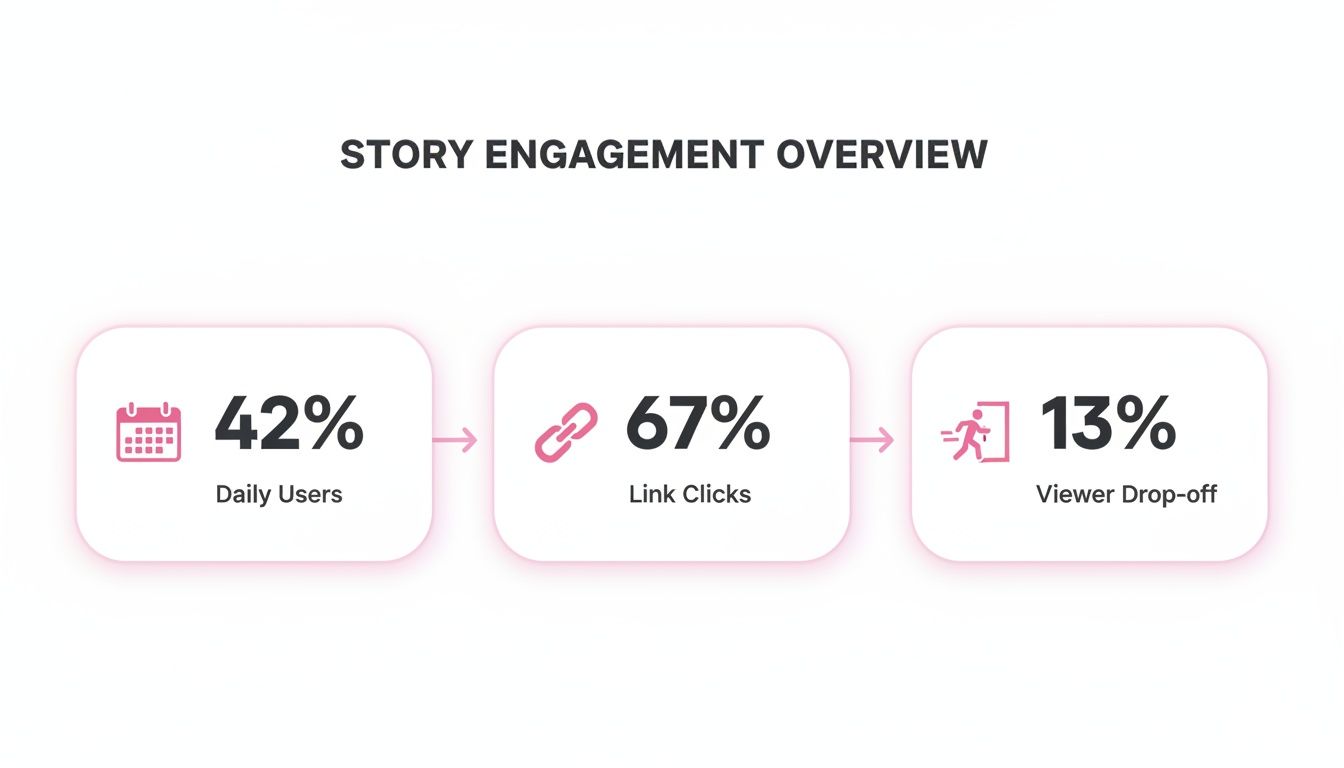
The takeaway is simple: while Stories draw a crowd, you have to make your content effortless to consume if you want them to stay.
Key Takeaway: Captions turn a passive, sound-off scroll into an active viewing experience. That directly translates to better retention and ensures your message actually gets heard—even in total silence.
Making your Stories more accessible with captions is a fantastic start. If you're looking for more quick wins, this guide on how to improve social media engagement has some great ideas. For a more comprehensive strategy, check out our deep dive on https://swiftia.io/how-to-increase-social-media-engagement/.
Use Instagram’s Built-in Auto-Caption Sticker
Let’s be honest, manually typing out every word for a 60-second Story is a huge time-drain. Thankfully, the quickest way to get captions on your Instagram Stories is by using the platform’s own built-in tool. It’s called the ‘Captions’ sticker, and it automatically transcribes the audio from your video.
Once you have your video ready in the Story editor (either by recording it or uploading from your camera roll), just tap the sticker icon at the top of the screen—it's the little smiley face in a square. From there, you'll see a sticker tray pop up. Look for the one labeled ‘Captions’ and give it a tap. Instagram will then get to work turning your audio into text right on the screen.
Fine-Tuning Your Auto-Captions
Now, as cool as this feature is, the AI isn't perfect. You absolutely have to review the text it spits out. I've seen it get tripped up by brand names, industry jargon, or even simple words if there's music or background noise.
Here’s a practical example: Imagine a fitness coach demonstrating a "kettlebell swing." The auto-caption might mishear that as "kettle bell sing." A quick edit fixes the confusion and makes sure their instructions are actually useful and professional.
Editing the text is super easy. Just tap on the captions, and Instagram will let you correct any typos or misheard words. Don't skip this step! It’s crucial for keeping your message clear and your brand looking polished. An internal study found that over 80% of auto-generated captions needed at least one small edit to be completely accurate.
You also get a few styling options. By tapping on the caption box, you can cycle through different fonts and text animations to match your brand's vibe. You can also pinch to resize and drag the captions anywhere on the screen, making sure they aren't covering up your face or any other important parts of the video. It’s a simple process that makes a huge difference in how professional and accessible your Stories feel.
Mastering Manual Text and Creative Styling
While Instagram's auto-caption sticker is a lifesaver for speed, there are times when you need total creative freedom to really make your Stories shine. This is where the manual text tool—that little ‘Aa’ icon—becomes your best friend. Think of it as the difference between using a pre-made template and starting with a blank canvas.

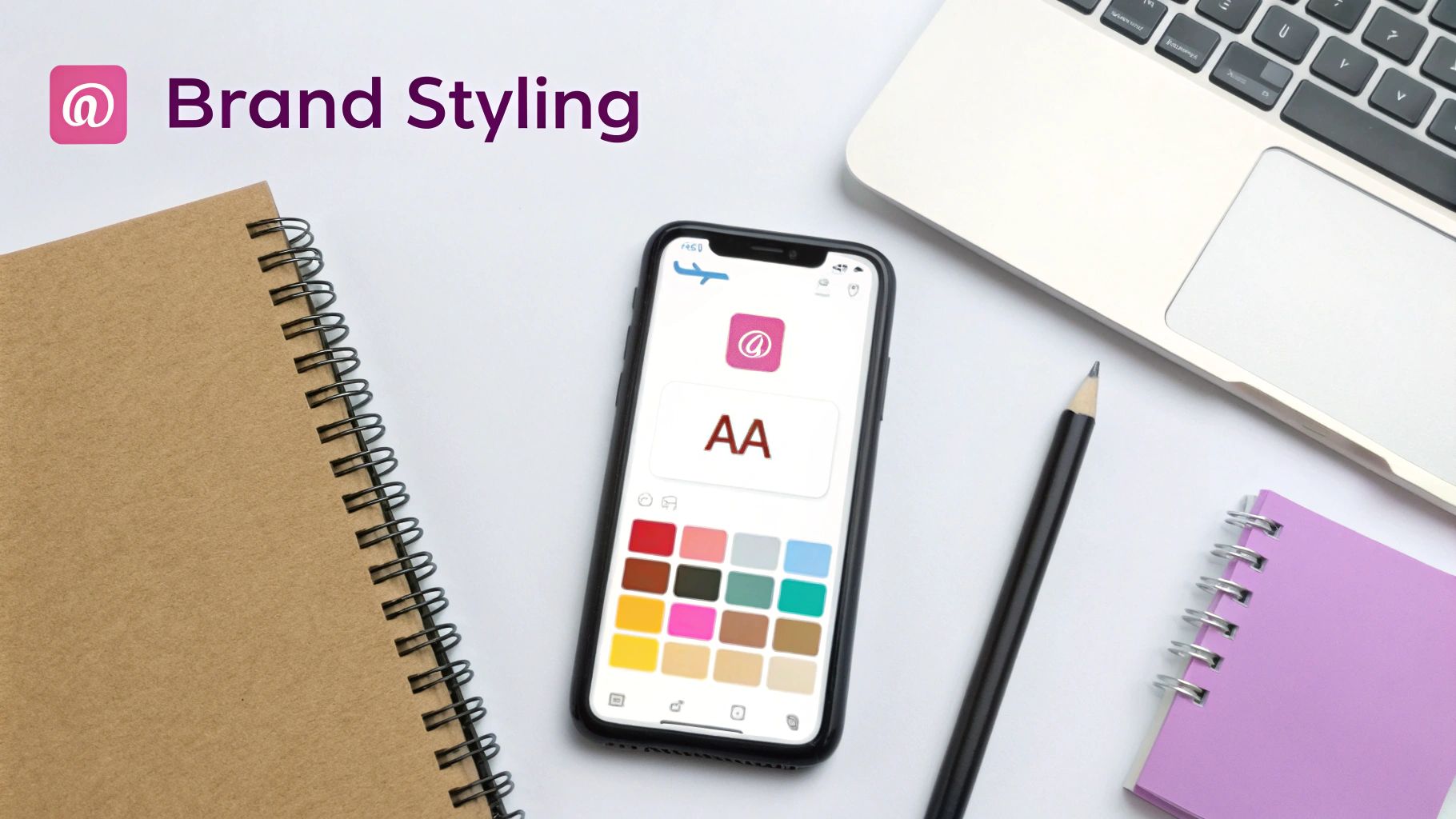
This approach is less about just getting words on the screen and more about injecting your brand's unique personality into every frame. You get to hand-pick from a whole library of fonts, use the eyedropper tool to nail your exact brand colors, and even add slick animations to make certain words pop.
Designing a Branded Story
Let's put this into a real-world context. Picture a design agency sharing a sneak peek of a new project. They need every detail to look polished and professional, perfectly matching their established brand identity.
Here's how they could pull it off with manual text:
- Font Selection: They'd skip the default fonts and pick one that closely matches their official brand typeface, creating an instant sense of cohesion.
- Color Matching: Using the color picker, they can sample a hex code directly from their logo (pro tip: add your logo as a sticker, grab the color, then delete the sticker) to ensure every word is perfectly on-brand.
- Strategic Animation: To highlight a key phrase like "Client-First Design," they could add a subtle text animation, like a gentle pulse, that grabs attention without being over-the-top.
This attention to detail transforms a simple Story into a valuable branding moment. It’s a powerful reminder that it's not just about what you say, but how you say it.
Auto-Captions vs Manual Text: A Quick Comparison
So, when should you use the quick-and-easy sticker versus the more hands-on text tool? It really depends on your goal for that specific Story. This table breaks down the key differences to help you decide on the fly.
| Feature | Auto-Caption Sticker | Manual Text Tool |
|---|---|---|
| Speed | Very fast; automatically transcribes in seconds. | Slower; requires manual typing and timing for each text block. |
| Accuracy | Good, but can have errors with accents or slang. | 100% accurate since you type it yourself. |
| Creative Control | Limited font styles and animations. | Full control over fonts, colors, size, and a wider animation range. |
| Best For | Quick updates, talking-head videos, behind-the-scenes. | Branded content, campaigns, CTAs, and stylized announcements. |
Ultimately, both tools are great to have in your toolkit. One gives you efficiency, while the other offers complete creative command.
Taking a few extra minutes to manually style your text ensures every Story is an authentic reflection of your brand. If you want to explore more ways to level up your videos, check out our guide on how to add text to video for other creative techniques.
Advanced Strategies for High-Impact Captions
Alright, you've got the basics down. Now, let’s go beyond just adding text and start thinking like a strategist. Captions that really hit home aren't just about what you say—it's about how you say it, where you place it, and how you guide your viewer's experience.
One of the most common mistakes is captions getting swallowed by Instagram's interface. You have to be mindful of the "safe zone." Keep your text away from the very top where your profile info sits and well clear of the reply bar at the bottom. It’s a simple tweak, but it guarantees your message is actually seen.
Another pro-level move is to build a narrative across a few Story slides. Don't cram a long, dense sentence onto a single slide. Instead, break it up. Tease an idea on the first slide and then complete the thought on the next. This creates a natural curiosity and encourages people to tap through to get the full story.
Combining Captions with Interactive Stickers
This is where the real fun begins. When you pair your well-placed captions with Instagram's interactive stickers, you turn passive viewers into active participants. With over 95 million photos and videos uploaded to Instagram every day, getting people to do something with your content is how you stand out.
Here's a practical example: A coffee shop wants to promote a new seasonal drink. They post a Story with a caption asking, "Ready for our new Pumpkin Spice Cold Brew?" Right next to the caption, they place a poll sticker with "Yes!" and "Can't Wait!" options. This simple combination makes the announcement interactive and gathers immediate customer feedback.
This isn't just about sharing information; it's about inviting people into a conversation. Try a few of these ideas:
- Polls: Ask a question in your video, and drop a poll sticker right next to the caption that frames the question.
- Quizzes: After posing a quiz question, have the correct answer pop up as an animated caption a few seconds later.
- Sliders: Use an emoji slider to let viewers react to an opinion or idea you're sharing in your captions.
When you start combining these elements—like location tags and relevant hashtags—with your captions, the results can be powerful. One analysis found this strategy can boost interaction by as much as 79%. If you're curious about more Instagram data, you can discover key insights on Meltwater.
Using Third-Party Tools to Speed Up Your Captioning
While Instagram's built-in tools are fine for the occasional Story, they can quickly become a major bottleneck if you're creating a lot of video content. Manually transcribing, timing, and styling captions for every single clip is a huge time-sink. This is exactly where dedicated video editing apps come in and completely change the game.
These external tools are designed for efficiency and consistency. Instead of reinventing the wheel with every new Story, you can set up branded templates. This means your exact fonts, colors, and caption animations are locked in and ready to apply with a single click, making sure every video looks like it belongs to your brand.
For anyone who repurposes content, this is a lifesaver.
Here's a practical scenario: A podcasting team can chop up a one-hour episode into 15 perfectly captioned, on-brand clips for their Stories. A dedicated tool can handle the transcription and apply their saved styles automatically. A task that could easily take a full day is knocked out in under an hour.
Nail Your Brand Consistency, Every Time
The real power of using external software is the ability to keep your branding perfectly consistent across all your videos, not just the ones on Instagram. This kind of consistency is crucial for building a recognizable brand. Plus, many of these tools have features that blow Instagram's native options out of the water.
Some of the key benefits you'll find are:
- Saved Brand Kits: Set your fonts, color palettes, and logos once and apply them instantly.
- Advanced Animations: Get access to more dynamic and professional-looking text styles.
- Bulk Processing: Edit and export a whole batch of clips at once, which is a massive time-saver for campaigns.
To help speed up the creative side of things, an Instagram Caption Generator can be a great resource for ideas. And if you want to dive deeper into this workflow, our guide on the best ways to add subtitles to short videos breaks down powerful tools for every platform.
Frequently Asked Questions About Instagram Story Captions

Even after you get the hang of adding captions, a few tricky situations always seem to pop up. Let's walk through some of the most common questions so you can solve them fast and get back to creating.
A classic creator nightmare: you hit "Share" and then realize you forgot the captions. Can you edit a live Story to add them? Unfortunately, no. Once a Story is published, its content is set in stone.
The only way to fix it is to delete the Story and re-upload it with the captions included. It’s a pain, but it’s also a powerful lesson to always build a final check into your workflow before you post.
Troubleshooting Caption Problems
"Help! I don't see the auto-caption sticker!" This is probably the most frequent issue. It almost always comes down to one of two culprits. First, your Instagram app might just be out of date. Head to your app store and see if there’s an update waiting.
If your app is current, the feature might not be available in your region or language yet. Instagram often tests and releases features in phases.
My Go-To Workaround: If the sticker is missing, don't sweat it. Just fall back on the manual text tool (the 'Aa' icon). It takes a few extra seconds, but you gain total control over the look and feel, which is sometimes even better.
Making Sure Your Captions Are Actually Readable
So, what makes a caption genuinely effective? It's all about clarity.
- Go for High Contrast: Always place light text on a dark background or vice-versa. The text background effect is perfect for ensuring your words pop, no matter what’s happening in your video.
- Keep Fonts Simple: It's tempting to use a fun, stylistic font, but a clean, sans-serif option is always the most readable. Remember, people are watching quickly.
- Position Them Smartly: Nothing is worse than captions getting cut off. Keep them out of the "safe zones"—away from your username at the top and the message reply bar at the bottom.
Nailing these simple practices makes your content more accessible and professional, which is a surefire way to improve your engagement.
Tired of spending hours transcribing and timing captions? Swiftia uses AI to transform your long-form videos into dozens of perfectly captioned, on-brand clips in just a few minutes. See how Swiftia can get you that time back.