Unwanted background noise, from a persistent air conditioner hum to distracting street traffic, can undermine an otherwise great video. That distracting hiss or buzz not only frustrates your audience but can also make your content seem unprofessional. In fact, studies show that over 60% of viewers stop watching a video because of poor audio quality. This guide is your definitive resource for solving that problem without spending a dime.
We've meticulously tested and compiled the best platforms to remove noise from video online free, so you can achieve studio-quality sound with just a few clicks. Whether you're a content creator battling inconsistent audio, a podcaster cleaning up an interview, or a marketing agency polishing a client's social media content, you will find a solution here. Each tool in this listicle is reviewed with a hands-on approach, detailing its specific capabilities, from eliminating wind and reverb to isolating speech.
This comprehensive roundup goes beyond a simple list. For each service, we provide:
- Step-by-step instructions with screenshots for easy navigation.
- Honest pros and cons based on real-world usage.
- Clear details on file limits, privacy policies, and export options.
- Practical tips for getting the best results.
Beyond just improving listenability, crystal-clear audio also dramatically enhances the accuracy when you need to transcribe a video to text for captions or documentation. Our goal is to help you quickly identify the right tool for your specific project, saving you hours of frustration and research. Let’s dive into the platforms that will transform your noisy footage into polished, professional video.
1. Adobe Enhance Speech (Adobe Podcast)
Adobe Enhance Speech is a specialized, AI-powered tool designed to dramatically improve the clarity of spoken-word audio. While part of the Adobe Podcast suite, its ability to accept video file uploads (like MP4 and MOV) makes it an excellent choice if your primary goal is to remove noise from video online free where dialogue is the focus. It works by isolating the human voice and reconstructing it, effectively eliminating background noise, echo, and reverb with a single click. For example, if you recorded an interview in a bustling cafe, this tool can make it sound as if the conversation happened in a quiet studio. This process goes beyond simple noise reduction, often making poorly recorded audio sound as if it were captured professionally.
The platform is incredibly user-friendly; you just drag and drop your video file, and the cloud-based AI handles the processing. The free tier is generous, allowing users to enhance up to one hour of audio daily, with a maximum file duration of 30 minutes and a 500MB size limit per upload. A paid Premium plan is available for users needing higher limits, bulk processing, and adjustable enhancement strength, which is a key feature for fine-tuning the output.
How to Use Adobe Enhance Speech for Video
- Navigate to the Adobe Enhance Speech website.
- Drag and drop your MP4, MOV, or other supported video file into the upload box.
- Wait for the AI to process the file. This can take several minutes depending on the file size.
- Preview the enhanced audio and download the resulting WAV or MP3 file.
- Import the clean audio track back into your video editor and replace the original noisy audio.
Pros & Cons
- Pros:
- Exceptional Speech Clarity: AI-driven reconstruction provides results superior to traditional denoisers, making it one of the best podcast editing software tools for audio cleanup.
- Ease of Use: The one-click, browser-based interface requires no technical expertise.
- Supports Video Files: Directly processes common video formats, simplifying the audio extraction workflow.
- Cons:
- Speech Only: Not suitable for videos with important background sounds or music, as it will try to remove them.
- No Video Export: It only outputs an audio file, requiring you to re-sync it with your video in a separate editor.
- Free Tier Limits: The daily and per-file limits may be restrictive for heavy users.
2. Descript – Studio Sound
Descript is a comprehensive, all-in-one video and podcast editor known for its innovative text-based editing workflow. Its standout feature for audio cleanup is "Studio Sound," an AI-powered, one-click tool that regenerates speech while removing background noise, echo, and reverb. This makes it a powerful option to remove noise from video online free, as the feature is integrated directly into the editor, allowing you to clean your audio without ever leaving your project timeline. For instance, if your webinar recording suffers from room echo, a single click on "Studio Sound" can make the dialogue sound crisp and direct.
The platform functions as a full-fledged editor where you can upload video, which is then automatically transcribed. From there, cleaning the audio is as simple as toggling a switch. The free plan includes access to Studio Sound, though it has limits on transcription hours and the number of watermark-free video exports per month. Upgrading to a paid plan unlocks higher limits, more features, and unlimited watermark-free exports, making it suitable for creators who need an integrated editing and audio enhancement solution.
How to Use Descript’s Studio Sound for Video
- Sign up and create a new project on the Descript website.
- Drag and drop your video file into the project to upload and transcribe it.
- Select the audio or video track in the timeline.
- In the right-hand sidebar, locate the "Audio effects" section and simply toggle on "Studio Sound."
- Allow a few moments for the AI to process the audio. You can adjust the intensity with a slider.
- Export your final video directly from Descript with the clean audio already synced.
Pros & Cons
- Pros:
- All-in-One Workflow: Noise removal is integrated within a full video editor, eliminating the need to re-sync audio.
- Extremely Simple: A single click is all it takes to apply the powerful AI enhancement.
- Adjustable Intensity: Unlike some one-click tools, you can control the strength of the effect.
- Cons:
- Optimized for Speech: It may aggressively remove or distort background music and other non-vocal sounds.
- Requires an Account: You must sign up and work within the Descript ecosystem.
- Free Plan Export Limits: The free tier limits the number of videos you can export without a watermark.
3. VEED.io – Clean Audio
VEED.io is a comprehensive, browser-based video editor that integrates a powerful AI “Clean Audio” tool directly into its workflow. This makes it an ideal choice for content creators who need to remove noise from video online free and then immediately proceed with other edits like adding subtitles, text, or effects. The platform’s one-click noise remover is designed to eliminate background disturbances such as wind, traffic, or fan hum, making it a streamlined solution for polishing video content for social media and marketing. For a practical example, a vlogger filming outdoors can use "Clean Audio" to reduce wind noise with a single click before adding captions and exporting the video for Instagram.
The primary advantage of VEED is its all-in-one nature. Unlike tools that only output an audio file, VEED allows you to clean the audio and export a finished video project from the same interface. While the free plan is great for trying out the platform and includes a one-time trial of the AI Clean Audio feature, consistent use requires a subscription to the Pro plan or higher. This integrated approach saves significant time for creators focused on producing ready-to-publish content quickly.
How to Use VEED.io’s Clean Audio
- Navigate to the VEED.io website and upload your video file.
- Once in the editor, select the video track on the timeline.
- In the left-hand menu, click on the “Clean Audio” button. The AI will automatically process and remove the background noise.
- Preview the video to hear the difference.
- Continue with any other edits, then export your final, noise-free video.
Pros & Cons
- Pros:
- All-in-One Editor: Combines noise reduction with a full suite of video editing tools, perfect for social media video editing.
- Simple Interface: The one-click process is extremely user-friendly and requires no audio engineering knowledge.
- Cloud-Based: No software installation is necessary, and it supports team collaboration features on paid plans.
- Cons:
- Limited Free Access: The noise removal feature is not fully free; it's a premium tool available as a limited trial on the free plan.
- No Strength Control: The AI process is automatic, offering no way to adjust the intensity of the noise reduction.
- Watermark on Free Plan: Videos exported from the free plan will have a VEED watermark.
4. Kapwing – Clean Audio
Kapwing is a popular browser-based video editor that includes a "Clean Audio" tool designed to quickly reduce background noise. While it's part of a comprehensive suite of editing features, its primary strength lies in convenience, allowing users to remove noise from video online free and perform other edits within the same interface. The platform supports common video formats and is particularly well-suited for creators making quick social media clips, presentations, or simple tutorials who need an all-in-one solution. For example, a student creating a video presentation with a noisy laptop fan in the background can use "Clean Audio" to clarify their narration before sharing the final project.
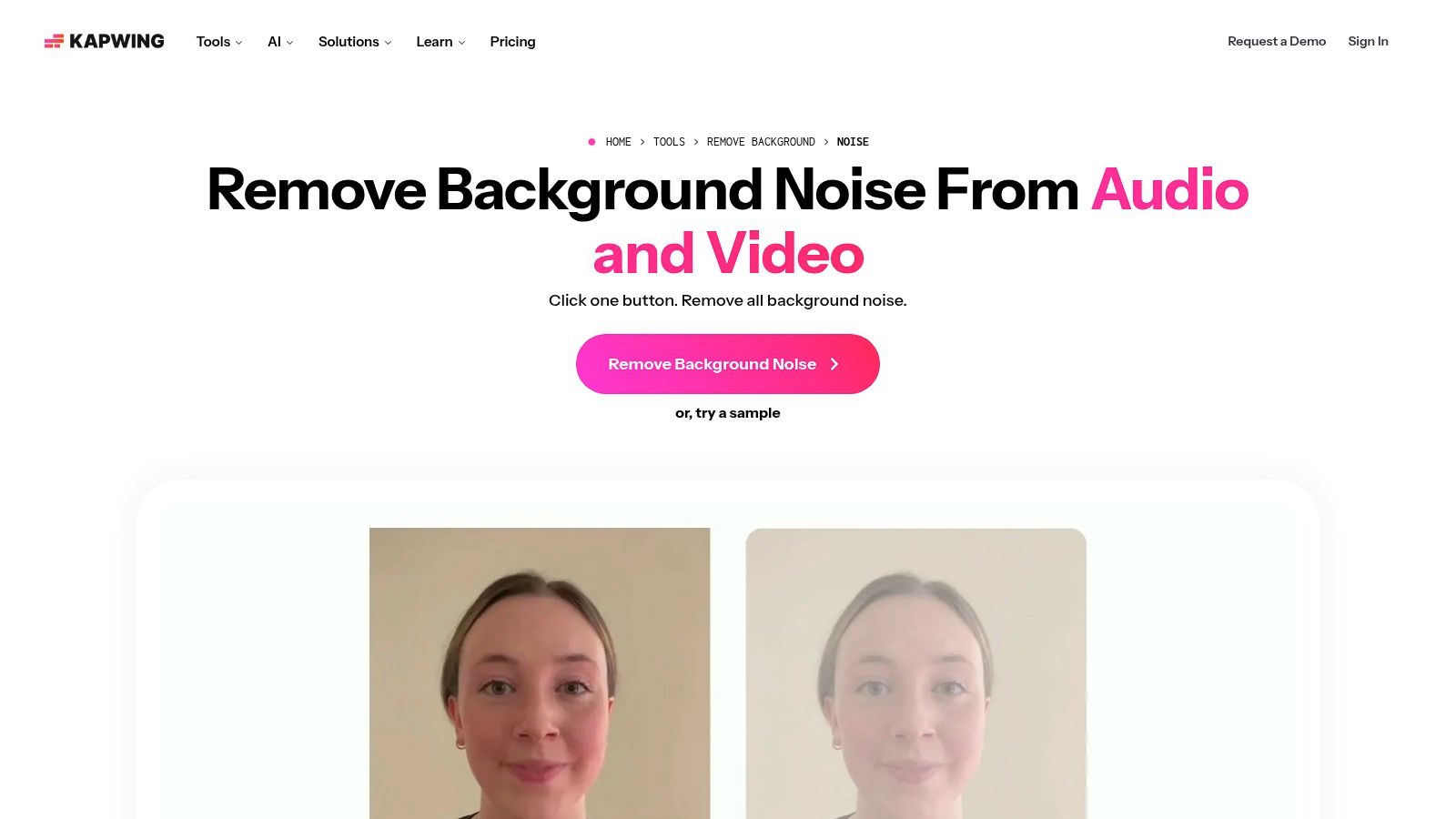
The "Clean Audio" feature itself is a straightforward, one-click process that automatically detects and suppresses common noises like hums, fans, and ambient chatter. Kapwing also offers a "Smart Cut" tool to automatically remove silences, further streamlining the editing workflow. However, it's crucial to note that while you can use the editor for free, the background noise removal function is a premium feature. Free users can edit videos, but exporting the noise-reduced version requires a Pro subscription and free exports will contain a watermark.
How to Use Kapwing – Clean Audio
- Navigate to the Kapwing editor website.
- Upload your video file by dragging it into the editor or selecting it from your device.
- Select the video layer on the timeline to open the editing options on the right-hand panel.
- Under the "Edit" tab, locate the "Clean Audio" button and click it. The tool will automatically process the audio.
- Preview the result in the editor. To download the final video without a watermark, you will need to upgrade to a Pro account.
- Click "Export Project" and choose your desired format and resolution.
Pros & Cons
- Pros:
- All-in-One Editor: Combines noise reduction with a full suite of video editing tools, perfect for quick social clips.
- User-Friendly Interface: The simple, one-click process makes it accessible for beginners.
- Broad Format Support: Handles most common video and audio file types conveniently online.
- Cons:
- Requires Pro Subscription: The "Clean Audio" feature is locked behind a paywall, making it not truly a free noise removal solution.
- Watermark on Free Exports: All videos created with the free plan will have a Kapwing watermark.
- Limited Control: Offers no adjustable parameters for noise reduction strength.
5. Flixier – AI Noise Reduction
Flixier is a comprehensive, cloud-based video editor that includes a handy "Enhance Audio" feature with an AI-powered noise reduction option. It’s designed for users who need a quick, all-in-one solution to both clean up audio and perform other edits without leaving their browser. This makes it an efficient tool if you want to remove noise from video online free and immediately make other adjustments, like adding text or trimming clips, before exporting the final product. For instance, a marketing professional can import a client testimonial video directly from Google Drive, use "Enhance Audio" to fix the sound, add company branding, and export it in minutes. The platform excels in fast cloud rendering, with Flixier reporting that projects are rendered in under 3 minutes, regardless of computer specs.
The user interface is intuitive, resembling traditional desktop video editors but running entirely online. You can start a project without creating an account, which is great for quick tests. The free plan offers access to the core features, including noise reduction, but comes with limitations on export time (10 minutes per month), a watermark on the final video, and 720p resolution. Paid plans remove these restrictions and unlock more advanced capabilities.
How to Use Flixier for Video Noise Reduction
- Navigate to the Flixier website and start a new project.
- Import your video file from your computer or a connected cloud storage account.
- Drag the video onto the timeline, right-click the clip, and select "Enhance Audio."
- In the pop-up menu, select "Remove Background Noise" and any other enhancements you need.
- Preview the changes in the editor and click "Export" to render and download your clean MP4 video.
Pros & Cons
- Pros:
- All-in-One Editor: Combines noise reduction with a full suite of video editing tools, eliminating the need for multiple apps.
- Cloud-Based Workflow: Fast processing and direct cloud imports make it highly efficient.
- No Account Required to Start: Users can try the tool and its features instantly without registration.
- Cons:
- Free Tier Limitations: The free version includes a watermark and has strict limits on monthly export time.
- Less Specialized: While effective, its noise reduction may not be as powerful as dedicated single-purpose audio tools for extremely noisy files.
- Voice-Focused: Works best on dialogue; it may slightly reduce the quality of intended background music or ambient sounds.
6. Media.io (Wondershare) – Noise Reducer & Video Denoiser
Media.io stands out by offering a comprehensive suite of tools that tackle both audio and visual noise within a single ecosystem. It provides two distinct, web-based utilities: an AI Noise Reducer for cleaning up audio tracks and a Video Denoiser for reducing visual grain and artifacts in footage. This dual capability makes it a powerful option when you need to remove noise from video online free on both the sound and image fronts. For example, if you have a video shot in low light with a noticeable hum, you can use the Video Denoiser to smooth the visuals and the Noise Reducer to eliminate the hum, all on the same platform.
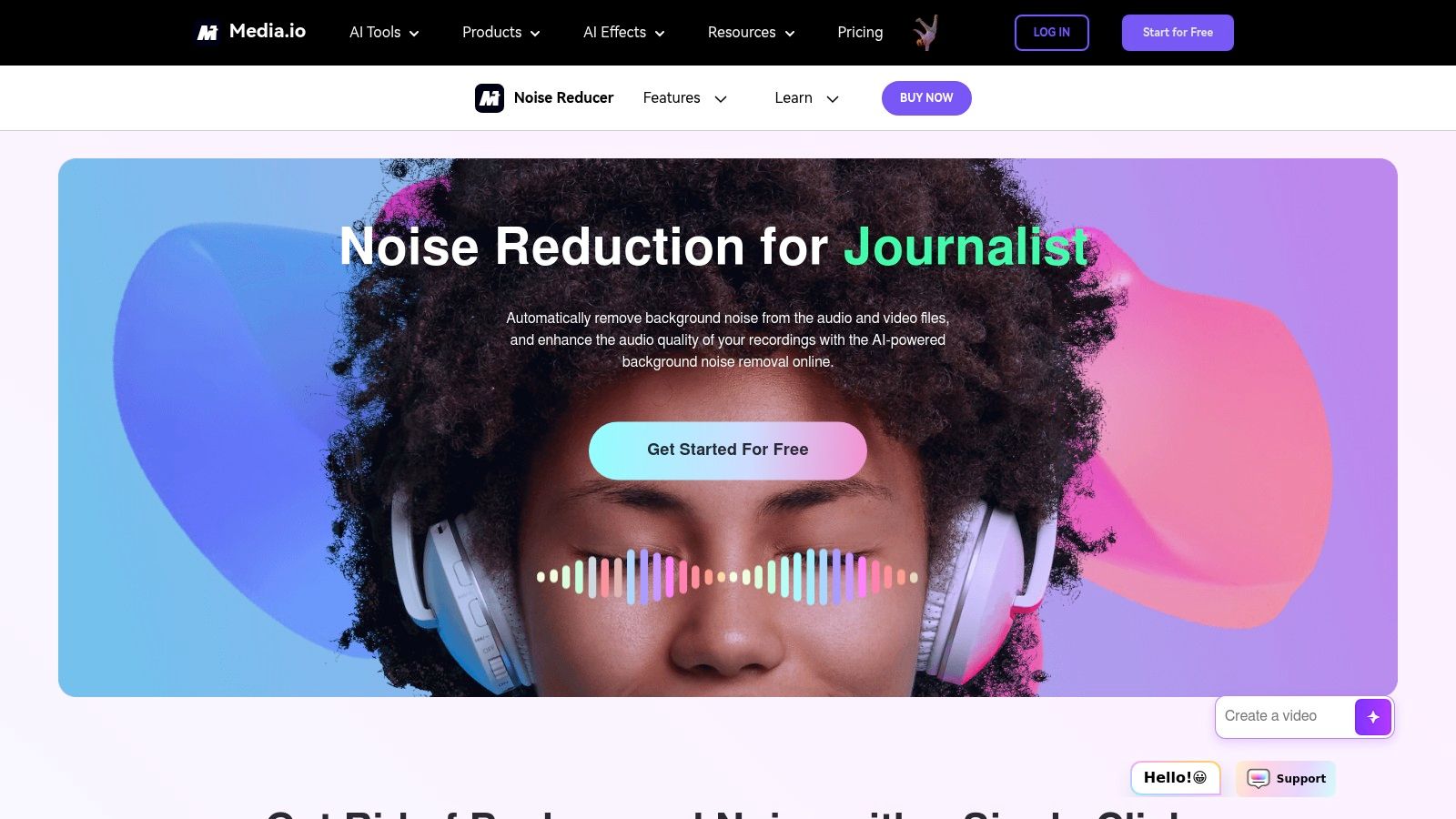
The audio Noise Reducer is particularly versatile, offering specific presets to target common issues like wind, hiss, clicks, and reverb, making it easy to select the right fix. Similarly, the Video Denoiser uses a one-click process to smooth out grainy video. While the free plan is useful for quick tests, watermark-free exports and processing longer files typically require a paid plan or credits. For instance, a free user can process up to 10 minutes of audio, but a paid subscription removes this limit and unlocks more features.
How to Use Media.io for Video
- Navigate to the Media.io Noise Reducer or Video Denoiser website.
- Upload your video file directly into the browser tool.
- For audio, select the type of noise you want to remove (e.g., Wind, Hiss, Reverb).
- The AI will process the file and provide a preview of the cleaned-up result.
- Download the denoised video or audio file. Note that a watermark may be applied on the free tier.
Pros & Cons
- Pros:
- Dual Functionality: Uniquely offers separate tools for both audio noise reduction and video denoising.
- Preset-Based Audio Cleanup: Simplifies audio editing with targeted presets for common noise types.
- User-Friendly Interface: The drag-and-drop, one-click process is accessible to beginners.
- Cons:
- Free Tier Limitations: The free version often includes watermarks and has limits on file duration and size.
- Variable Results: The AI can sometimes struggle with complex audio that mixes music and speech, potentially affecting quality.
- Account Required: Full access and downloads without watermarks typically require creating an account and a subscription.
7. Clideo – Online Video Editor (Noise Reduction)
Clideo is a comprehensive online video editor that includes a straightforward noise reduction feature, making it a great all-in-one tool for quick edits. Unlike specialized audio cleaners, Clideo integrates this function directly into its full video editing timeline. This allows users to remove noise from video online free while also performing other tasks like trimming, adding text, or adjusting colors in the same workflow. A practical example would be taking a family vacation video with distracting background chatter and using Clideo to reduce the noise, add a title card, and trim the length before sharing.
The platform’s strength lies in its accessibility. The noise reduction is a simple toggle switch found in the audio settings, which is ideal for beginners. While the free version places a watermark on the final video, it is a practical option for casual users or for creating draft versions of a project. Clideo also supports a wide array of video formats and provides helpful tutorials to guide new users through its features. A paid plan removes the watermark and offers faster processing.
How to Use Clideo for Video Noise Reduction
- Navigate to the Clideo Video Editor website.
- Click "Choose files" to upload your video from your device, Google Drive, or Dropbox.
- Once the video is on the timeline, click to select the video track.
- In the editor panel on the right, find the "Audio" tab and activate the "Reduce noise" toggle.
- Make any other desired edits to your video.
- Click the "Export" button to process and download your final video file.
Pros & Cons
- Pros:
- Integrated Video Editor: Noise reduction is part of a complete editing suite, eliminating the need for multiple tools.
- Extremely Simple UI: The one-click toggle is perfect for users without technical audio editing experience.
- Cloud-Based Convenience: Accessible from any device with a web browser, with no software to install.
- Cons:
- Watermark on Free Plan: Free exports are watermarked, which may be unsuitable for professional use.
- Limited Audio Control: The tool is a simple on/off switch with no options to adjust the intensity of the noise reduction.
- Slower Processing: Free users may experience longer processing and export times compared to paid subscribers.
8. Riverside.fm – Online Editor with Remove Background Noise
Riverside.fm is a high-fidelity recording and editing platform primarily built for podcasters and interviewers, but its powerful editor includes excellent tools to remove noise from video online free. Its standout feature is the ability to handle multitrack recordings, making it ideal for cleaning up interviews where each participant has a separate audio track. For example, if you host a video podcast and one guest has a dog barking in their background, you can apply noise removal to their track only, preserving the audio quality of other participants. The platform offers a simple "Remove Background Noise" toggle during the export process, which effectively suppresses common distractions.
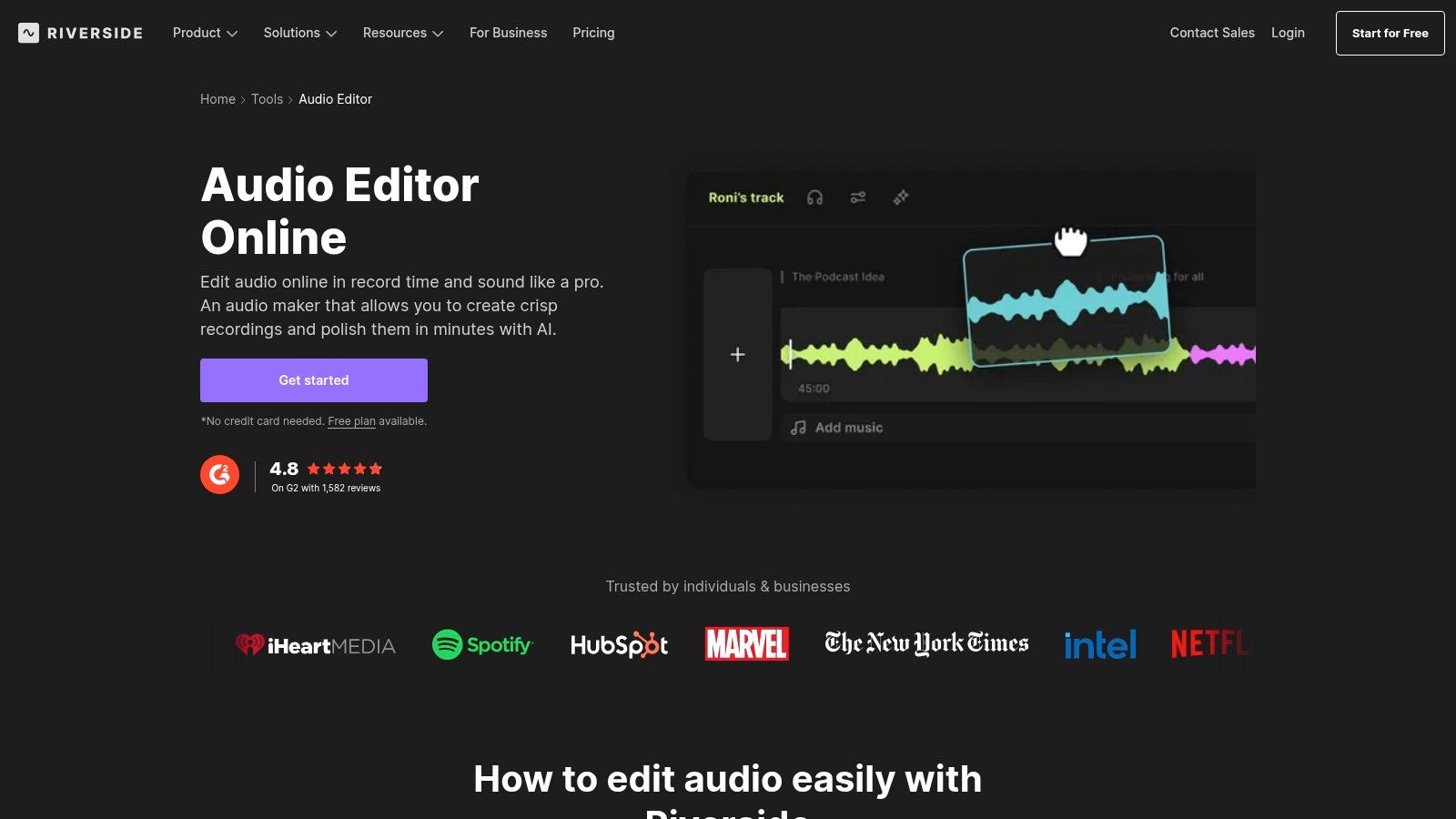
The free plan provides a great starting point, offering up to two hours of separate audio and video track recording. For more advanced cleaning, the "Magic Audio" feature (available on paid plans) uses AI to provide a more comprehensive enhancement, normalizing levels and improving clarity across all tracks simultaneously. According to Riverside, their local recording method ensures studio-quality files up to 4K video and 48kHz WAV audio, regardless of internet connection.
How to Use Riverside.fm's Editor
- Sign up for a free account on the Riverside.fm website.
- Record your video directly in a Riverside studio or upload an existing video file to the editor.
- Once in the editor, make any necessary cuts or adjustments to your video and audio tracks.
- Click the "Export" button in the top right corner.
- In the export settings, toggle on the Remove background noise option. You can also normalize audio levels here.
- Choose your desired video quality and export the final, clean video file.
Pros & Cons
- Pros:
- Interview-Focused Workflow: Excels at cleaning multitrack audio from interviews and podcasts.
- High-Quality Local Recordings: Records each participant's track locally, preventing internet-related quality drops.
- Integrated Solution: Offers a seamless process from recording and editing to noise removal and export.
- Cons:
- Advanced Features are Paid: The most powerful AI tool, "Magic Audio," requires a subscription.
- Focus on Recording: The toolset is best leveraged when you record directly within the platform.
- Free Plan Limits: The two-hour recording limit may be restrictive for some users.
9. Microsoft Clipchamp – AI Audio Enhancer / Noise Suppression
Microsoft Clipchamp is a full-featured, browser-based video editor that includes a handy AI-powered audio enhancer. This tool is designed to automatically remove noise from video online free, making it an excellent all-in-one solution for creators who need to clean up their audio and edit their video in the same place. For example, an educator creating an online course can use Clipchamp to remove the hiss from their microphone and trim their lecture footage, all without needing to download any software. Its noise suppression feature targets common distractions while also balancing audio levels to improve overall clarity.
As a Microsoft product, Clipchamp integrates seamlessly with Windows and Microsoft 365, offering a familiar and trusted environment. The free plan provides access to core editing tools, including the audio enhancer, and allows exports in up to 1080p HD resolution without watermarks. For users needing more advanced features like 4K exports and premium stock content, a paid plan is available. The interface is exceptionally beginner-friendly, making it a great starting point for those new to video editing.
How to Use Microsoft Clipchamp for Video
- Navigate to the Microsoft Clipchamp website and sign in with your Microsoft account.
- Start a new project and upload your video file to the media library.
- Drag your video onto the timeline. Click the audio track to select it, then click the "Audio" tab in the right-hand property panel.
- Click the "Audio enhancement" button (magic wand icon) and wait for the AI to process and clean the audio.
- Preview the changes directly in the editor and export your finished video with the enhanced audio.
Pros & Cons
- Pros:
- All-in-One Editor: Combines video editing and audio noise reduction in a single, easy-to-use platform.
- Trusted Vendor: Backed by Microsoft, ensuring reliability and integration with Windows and Microsoft 365 workflows.
- Generous Free Tier: Offers watermark-free 1080p exports and core features without a subscription.
- Cons:
- Limited Audio Control: The AI enhancement is a one-click process with no adjustable parameters for fine-tuning.
- Web-Based Performance: Processing can be slow on less powerful computers or with weak internet connections.
- Account Required: Requires a Microsoft account to use, which may be a barrier for some users.
10. Auphonic
Auphonic is a sophisticated, AI-driven audio post-production service widely used by podcasters and broadcasters, and it's an excellent tool to remove noise from video online free. It accepts video files like MP4 and MOV, automatically extracting and processing the audio track. The platform excels at intelligent noise and hum reduction, adaptive leveler to balance volume, and loudness normalization to meet broadcast standards. For instance, a filmmaker could upload a documentary scene with varying dialogue volumes and background rumble; Auphonic would automatically balance the speech levels and filter the rumble, creating a polished, broadcast-ready audio track.
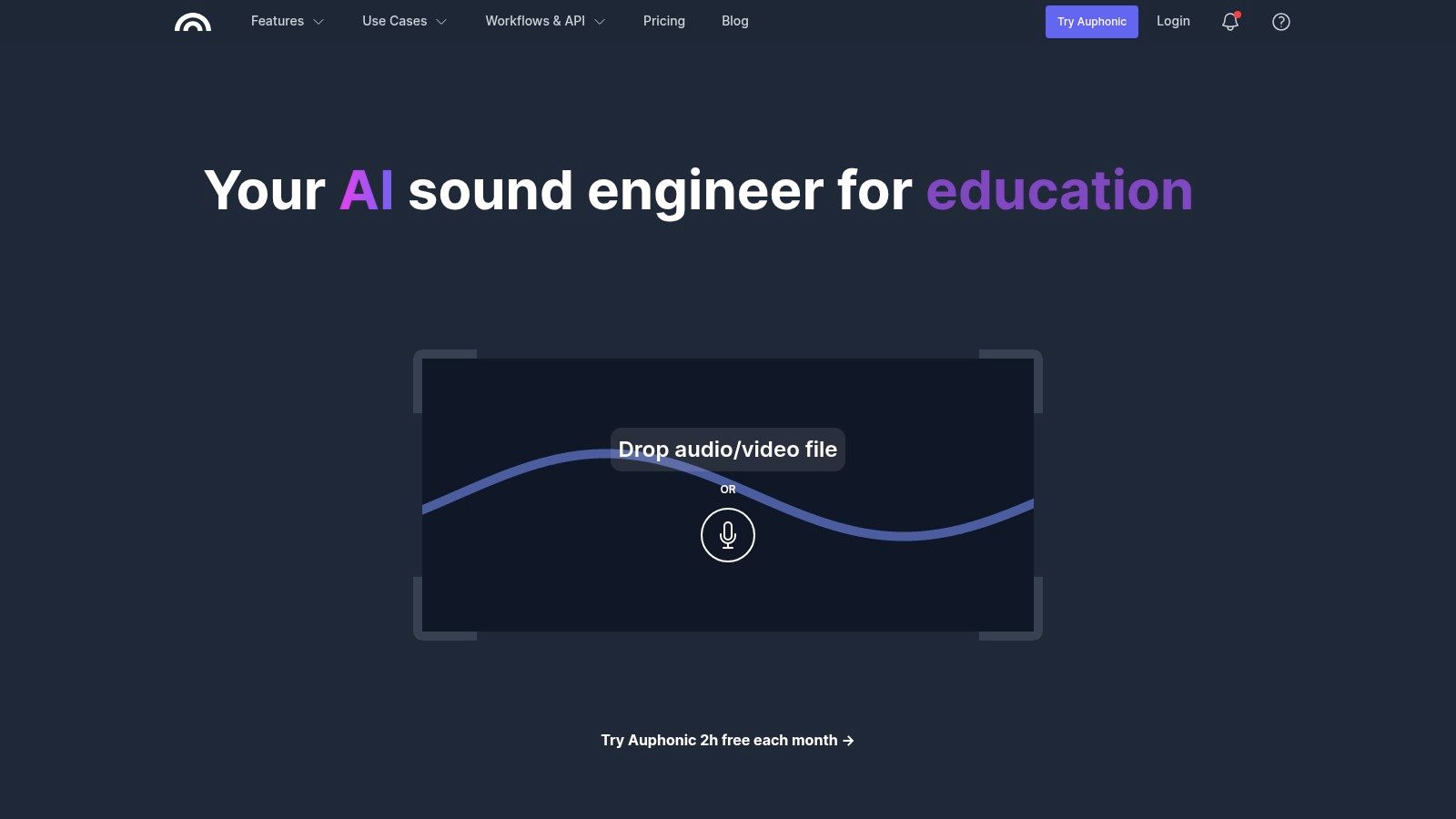
The platform operates on a credit system, generously offering users two free hours of audio processing every month. Auphonic's strength lies in its automated, multi-filter approach; it analyzes the audio and applies several fixes simultaneously, such as reducing background hiss, filtering out low-frequency rumbles, and ensuring dialogue is clear and present. While the web app is powerful, paid plans unlock batch processing and further automation, making it a scalable solution for high-volume creators.
How to Use Auphonic for Video
- Navigate to the Auphonic website and create a free account.
- In your dashboard, click "New Production" and upload your video file.
- Select the desired noise reduction strength and other audio processing settings.
- Click "Start Production" and wait for the automated processing to complete.
- Download the finished audio file (e.g., MP3 or WAV).
- Import this clean audio into a video editor to replace the original, noisy track.
Pros & Cons
- Pros:
- All-in-One Audio Polishing: Combines noise reduction, leveling, and loudness normalization in one step.
- Consistent, Professional Results: Excellent for achieving balanced, broadcast-quality dialogue.
- Generous Free Tier: Two free hours of processing per month is ample for many small projects.
- Cons:
- Audio Output Only: Requires users to re-sync the processed audio with their video in a separate editor.
- Dialogue-Focused: Not designed for enhancing or cleaning music; it may negatively affect musical elements.
- Slight Learning Curve: The interface has more settings than single-click tools, which can be daunting for absolute beginners.
11. CapCut – Remove Background Noise from Audio (Web)
CapCut’s web-based editor, known for its dominance in short-form social video creation, includes a simple yet effective feature to remove noise from video online free. Designed for creators on platforms like TikTok and Instagram Reels, its noise reduction is integrated directly into the video editing timeline. For example, a TikTok creator filming a cooking tutorial can easily remove the sound of their kitchen extractor fan with a single click inside CapCut before adding trending music and text overlays. It's a convenient one-click function within a comprehensive video editing suite, making it ideal for users who need to clean up audio and complete their entire video project in one place.
The platform stands out for its seamless workflow; you upload your video, select the audio clip, and toggle the "Noise reduction" switch. This simplicity is its greatest strength, catering to content creators who need quick results without a steep learning curve. While it lacks the advanced AI reconstruction of dedicated audio enhancers, its performance on common background noises like fan hum, air conditioning, or distant traffic is surprisingly capable for social media-quality audio.
How to Use CapCut for Video
- Navigate to the CapCut online video editor and start a new project.
- Upload your video file to the project media bin and drag it onto the timeline.
- Select the video clip on the timeline, then navigate to the "Audio" tab in the right-hand panel.
- Under the "Basic" settings, find and activate the "Noise reduction" toggle.
- Preview the video with the cleaned-up audio. You can also adjust volume and add fades.
- Export your final video directly, with the denoised audio already synced.
Pros & Cons
- Pros:
- All-in-One Workflow: Clean audio and edit your entire video within a single, intuitive interface.
- Extremely Easy to Use: A simple one-click toggle makes it accessible to beginners.
- Completely Free: No limits on usage, making it perfect for frequent social media content creation.
- Cons:
- Limited Control: It's a simple on/off switch with no sliders to adjust the intensity of the noise reduction.
- Not for Complex Audio: Less effective on highly variable or loud background noise compared to specialized tools.
- Requires Account: You need to sign in with a Google, TikTok, or Facebook account to export your video.
12. Podcastle – Magic Dust AI / AI Noise Reducer
Podcastle is a comprehensive, browser-based studio that offers powerful tools to remove noise from video online free, including its standout "Magic Dust" feature. This one-click AI tool automatically cleans up audio by removing background noise, balancing levels, and improving clarity. A practical example is using "Magic Dust" on a recorded Zoom meeting video; the tool will remove individual background noises from each participant and balance their microphone levels, resulting in a clear, consistent audio track for the entire recording. Podcastle integrates this functionality within a full-featured multitrack editor, allowing you to denoise specific clips directly on your video's timeline.
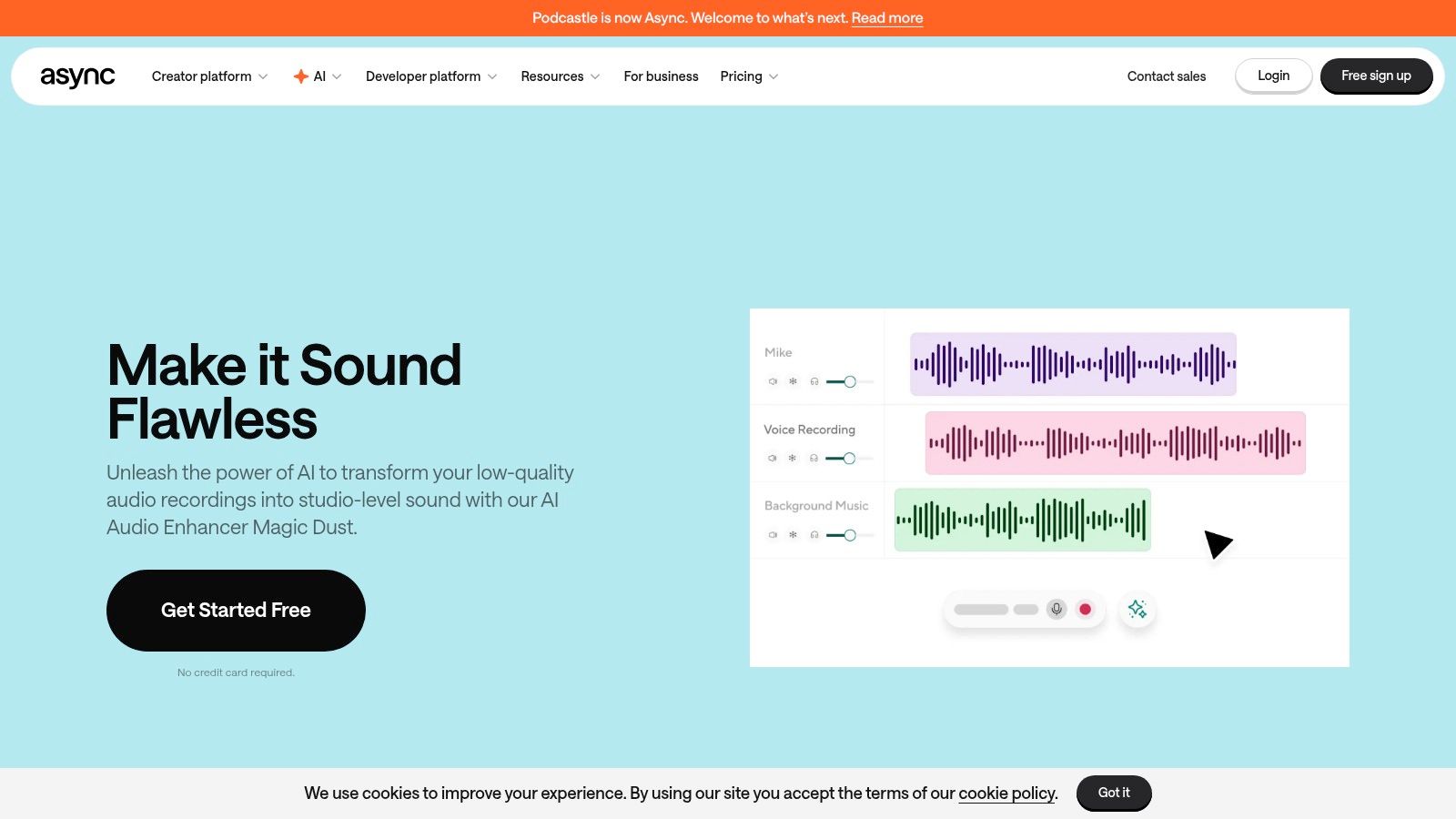
The platform is designed for content creators who need more than just a simple noise reducer. It combines timeline and text-based editing, making it easy to manipulate your video by editing the auto-generated transcript. The free plan is quite functional for smaller projects, offering core features with certain limits on recording hours and project exports. This integrated approach makes Podcastle an excellent choice for users who want to record, edit, enhance, and export their video content all in one place.
How to Use Podcastle for Video
- Sign up for a free account and create a new project on the Podcastle website.
- Upload your video file into the project timeline.
- Select the audio track associated with your video clip.
- In the right-hand panel, find and click the "Magic Dust" button. The AI will process the audio in seconds.
- Preview the changes directly in the timeline editor.
- Once satisfied, export your entire video project with the clean audio.
Pros & Cons
- Pros:
- Integrated Editor: Denoise and edit video in a single, seamless workflow without switching apps.
- Fast Processing: "Magic Dust" provides near-instant cleanup for dialogue-heavy audio.
- Multitrack Support: Allows for complex projects with multiple video and audio layers.
- Cons:
- Less Effective on Music: The one-click AI is optimized for speech and may not perform as well on videos with prominent music.
- Free Plan Limits: The free tier has restrictions on total recording/transcription hours and export quality.
- Requires Account: You must sign up for an account to use the editor, even for quick tasks.
12 Free Online Video Noise-Removal Tools — Comparison
| Product | Core features | Best for | Key strengths | Pricing & limits |
|---|---|---|---|---|
| Adobe Enhance Speech (Adobe Podcast) | One‑click speech cleanup; accepts MP4/MOV/audio; adjustable strength; bulk uploads | Podcasters, editors needing fast dialogue uplift | Superior dialogue clarity; cloud‑based, fast | Free daily limits; low‑cost Premium for larger files |
| Descript – Studio Sound | One‑click denoise/echo removal inside text‑based editor; full video timeline | Podcasters & video editors who edit by transcript | Integrated editing + collaboration; simple on/off workflow | Free plan with limits; paid tiers for heavier use |
| VEED.io – Clean Audio | AI noise reduction in cloud video editor; subtitles & translation | Social creators and small teams | All‑in‑one editor with social exports; browser‑based | Trial/free limits; paid plans/credits for full access |
| Kapwing – Clean Audio | One‑click Clean Audio; Smart Cut; web exports MP4/MP3 | Quick social clip creators | Simple workflow; broad format support | Pro required for Clean Audio; free exports watermarked |
| Flixier – AI Noise Reduction | Reduce Background Noise; cloud rendering; cloud imports | Fast short‑form workflows & teams | Fast in‑browser results; direct cloud imports | Free tier with export/feature limits; paid upgrades |
| Media.io – Noise Reducer & Video Denoiser | Audio presets (speech/wind/hiss/reverb); visual denoiser | Projects needing both audio + visual cleanup | Combines audio and video denoise; quick previews | May require account/credits; paid for longer files/no watermarks |
| Clideo – Online Editor (Noise Reduction) | Noise reduction toggle; mute/detach audio; fades | Occasional users needing simple fixes | Very simple UI; tutorials and KB | Free with limits; paid plans for faster processing/no watermark |
| Riverside.fm – Editor w/ Remove Background Noise | Export‑time noise removal; Magic Audio; multitrack recording | Interview & remote podcast workflows | Local tracks + strong podcast workflow; clear docs | Free plan; advanced features on paid tiers |
| Microsoft Clipchamp – AI Audio Enhancer | Noise suppression; audio enhancer; silence removal | Beginners & Microsoft 365 users | Beginner‑friendly; M365 integration | Free tier available; some features vary by account type |
| Auphonic | Noise/reverb reduction; loudness leveling; batch automations | Podcasters needing consistent loudness & cleanup | Reliable loudness control; batch processing | 2 free hours/month; paid plans for more processing |
| CapCut – Remove Background Noise (Web) | Slider/one‑click noise reduction; basic audio edits; social exports | TikTok/Reels creators | Free, easy, social‑first editor | Free to use; some regional export quirks reported |
| Podcastle – Magic Dust AI / AI Noise Reducer | Magic Dust enhancements; AI Noise Reducer; multitrack editor | Podcasters & quick speech cleanup for video | Fast cleanup inside browser editor; text + timeline editing | Free plan with project/hour limits; paid tiers expand usage |
Beyond One-Click Fixes: When to Level Up Your Audio Game
We've explored a comprehensive roster of twelve powerful tools, each offering a unique approach to help you remove noise from video online free. From the impressive AI-driven clarity of Adobe Enhance Speech and Descript’s Studio Sound to the all-in-one editing suites like VEED.io and Kapwing, it's clear that you no longer need expensive software to achieve clean, professional-sounding audio. The days of fighting with distracting hums, hisses, and background chatter are numbered, thanks to these accessible web-based solutions.
The key takeaway is that the "best" tool is entirely dependent on your specific project and workflow. A content creator needing a quick fix for a social media clip will have different needs than a podcast producer aiming for broadcast-quality sound or a developer looking to integrate audio processing into an application.
Choosing Your Denoising Strategy
Reflecting on the tools we've covered, your decision should hinge on a few critical factors.
- For Pure Audio Enhancement: If your sole mission is to elevate spoken word content, tools like Adobe Enhance Speech and Podcastle’s Magic Dust AI are unparalleled. They are specialists, designed to isolate and clarify the human voice with remarkable precision, making them ideal for podcasters, voice-over artists, and interviewers.
- For Integrated Video Editing: When noise removal is just one part of a larger video editing process, platforms like VEED.io, Kapwing, and Microsoft Clipchamp offer the most streamlined experience. Their strength lies in convenience; you can trim clips, add text, and clean audio all within a single browser tab, saving you valuable time.
- For Balancing Control and Simplicity: Services like Auphonic and Riverside.fm strike an excellent middle ground. They provide more than just a simple on/off switch, offering adaptive leveling and loudness normalization that cater to users who want a polished final product without needing to master complex audio engineering principles.
The Proactive Approach to Clean Audio
While these online tools are incredibly effective for post-production rescue missions, the ultimate strategy for pristine audio begins long before you hit "record." Implementing solid recording techniques can dramatically reduce the amount of noise you have to remove later. A study by audio researchers often highlights that for every decibel of noise reduced at the source, you save significant time and potential artifacts in post-processing.
A crucial first step is understanding your recording environment and equipment. For those serious about audio quality, mastering fundamental recording techniques, such as selecting a microphone with the appropriate cardioid polar pattern, can significantly reduce the amount of ambient noise captured and minimize the need for extensive post-production noise removal. This proactive mindset, combined with the powerful reactive tools we've discussed, creates a comprehensive workflow for consistently professional results.
Moving Beyond the Free Tier
The free tools listed are fantastic for individual projects, occasional use, and getting started. However, as your needs grow, you will likely encounter their limitations, such as file size caps, watermarks, or processing queues. This is the inflection point where graduating to a more robust, scalable solution becomes necessary. For businesses, digital marketing agencies, and developers, efficiency, reliability, and integration are paramount. Waiting for a file to process or manually uploading videos one by one is simply not a sustainable model for high-volume content operations.
Ultimately, the ability to remove noise from video online free has democratized professional-quality content creation. Armed with the insights from this guide, you can confidently select the right tool for your immediate needs and build a workflow that ensures your message is always heard, loud and clear.
Ready to move past manual uploads and integrate powerful, automated audio enhancement directly into your platform? Swiftia offers a developer-first API that handles noise reduction, speech enhancement, and other complex audio processing tasks at scale. Explore the Swiftia API to see how you can deliver clean, studio-quality audio to your users effortlessly.