Ever found yourself trying to watch a TikTok on a noisy train or in a dead-silent waiting room? Knowing how to quickly toggle captions on and off is a lifesaver.
The short version? If you're watching a video, just tap the 'Share' icon, then hit 'Captions' to turn them on. If you're making a video, you can add them automatically by tapping the 'Captions' sticker right in the editor.
Why Captions Are Your Secret Weapon on TikTok
In a sea of endless content, captions give you a massive edge. They open up your videos to the millions of people who scroll with the sound off, which means more engagement and a message that actually gets seen. It’s a simple feature that completely changes the game for both viewers and creators.
The Power of Accessibility and Engagement
Think about the sheer volume of content on TikTok. An estimated 34 million videos are uploaded every single day to an audience of 1.6 billion active users. A huge chunk of those users are watching silently, and that’s where captions become absolutely essential. For example, a recent study showed that videos with captions saw a 12% increase in watch time.
The numbers don't lie. A study by Verizon Media found that 80% of consumers are more likely to watch an entire video when captions are available. This performance boost comes from making your content easier for everyone to consume. When you add captions, you’re not just posting a video; you’re making it accessible to:
- People on their daily commute or in public spaces.
- The deaf and hard of hearing community.
- Anyone who isn't a native speaker and finds it easier to read along.
It's a win-win. You make your content more inclusive, and in return, you dramatically increase the odds that people will watch your video all the way through—a signal the TikTok algorithm absolutely loves.
A Creator’s Key to Going Viral
For anyone trying to grow on TikTok, captions aren't just an afterthought. They're a direct path to better engagement and a much bigger audience.
Well-timed, accurate captions can be the one thing that separates a video that gets a handful of likes from one that truly takes off. For instance, a creator sharing a quick-fire comedy sketch relies on captions to ensure every punchline lands, even for viewers with the sound off. If you've ever wondered what makes content so shareable, you might want to check out our guide on what makes a video go viral. In the end, getting a handle on captions is a core skill for any creator serious about making an impact on the platform.
Turning On Captions as a TikTok Viewer
Ever find yourself trying to watch a TikTok in a noisy café or late at night with the sound off? You’re not alone. In fact, a staggering 85% of social media videos are watched on mute, which is why captions are so incredibly useful.
Thankfully, turning them on is a breeze.
When you're watching a video and see captions are available, just tap the share icon—the little arrow on the right-hand side of the screen. A menu will pop up, and you should see a “Captions” button. Tap that, and voilà! The text will appear, synced right up with the audio.
What if the Caption Button is Missing?
If you tap the share button and don't see an option for captions, it’s not a glitch on your end. It simply means the creator didn't add them or turn on the auto-caption feature when they uploaded the video. Ultimately, it's up to the person posting the content to make captions available.
This flowchart shows how the process works from start to finish—it all begins with the creator.
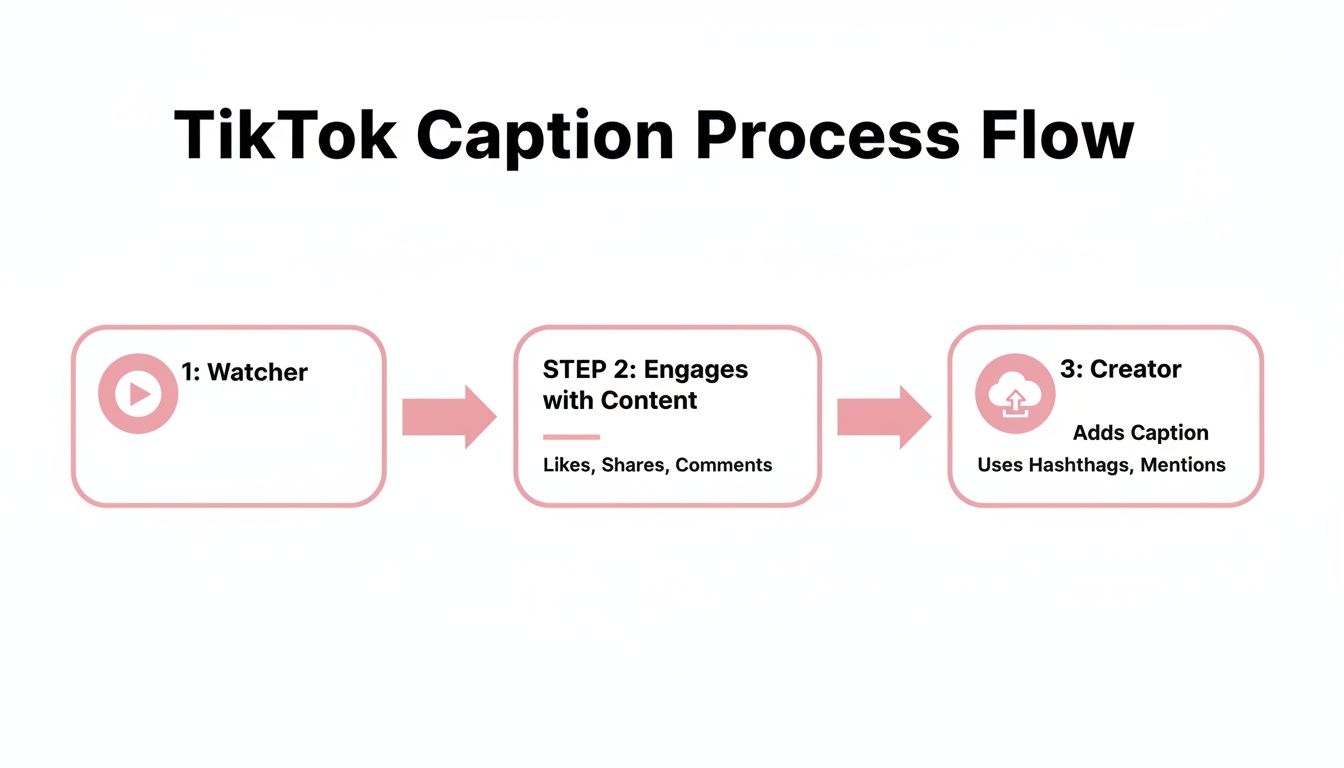
As you can see, the creator's action is the first and most critical step. Without it, there’s nothing for the viewer to activate.
Think about trying to follow a complicated recipe or a DIY tutorial on TikTok. If the creator skipped the captioning step, you’d be lost without sound, unable to catch those crucial instructions.
This whole process relies on speech-to-text technology, which has become common everywhere. Beyond just TikTok, it’s worth knowing how to turn on talk-to-text features on various devices for everything from sending messages to taking notes. Understanding how it works makes your tech life a whole lot easier, whether you’re watching videos or making your own.
Adding and Editing Captions as a Creator
As a creator, turning on captions isn't just a nice-to-have feature; it's one of the smartest ways to make your content work harder for you. It instantly makes your videos more accessible and gives them a polished, professional feel. Thankfully, TikTok's built-in auto-captioning tool is surprisingly good and easy to use.
Once you've shot your video or uploaded it from your camera roll, you'll land on the main editing screen. Just look to the menu on the right-hand side and find the "Captions" icon. Give that a tap, and TikTok's AI will get to work, transcribing all the audio in your video. It's usually pretty quick.
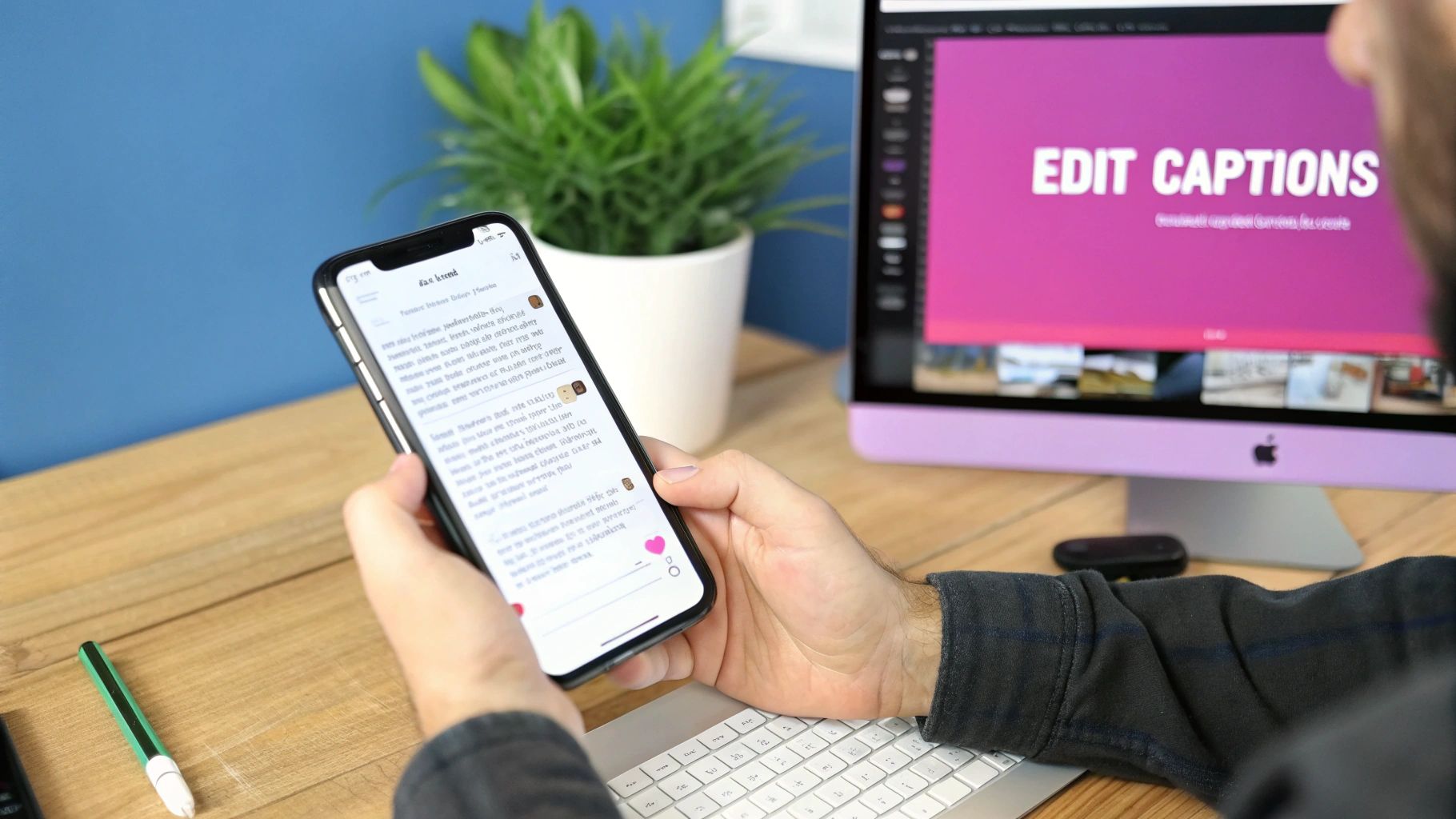
Fine-Tuning Your Auto-Generated Captions
Now, for a crucial pro tip: always, always proofread the auto-captions. TikTok’s AI is impressive, but it’s far from perfect. Taking a minute to review the text is essential for keeping your message clear and avoiding embarrassing mistakes.
Think about it. If you're a tech creator talking about a computer's 'RAM,' the AI might hear 'ram,' and suddenly your review makes no sense. The same goes for brand names, slang, or any industry-specific jargon—these are the words AI often stumbles over.
Fixing these errors is simple. In the editor, just tap on the caption text. This lets you correct individual words, add punctuation that the AI missed, and even tweak the timing so each line appears exactly when you say it. For creators who do a lot of voiceover work, it's also worth looking into various voice typing app tools, which can sometimes offer even more accuracy and control from the get-go.
Styling Captions for Maximum Impact
Once the words are right, it’s time to make them look good. The default caption style is okay, but custom styling helps your videos stand out in a crowded "For You" page and reinforces your personal brand.
TikTok gives you a few simple but powerful tools to work with:
- Fonts: Pick a font that's easy to read but still matches the vibe of your video.
- Colors: The key here is contrast. Choose a text color that pops against your video's background so it's always legible.
- Placement: Don't let your captions cover up the most important part of your shot! You can drag the text box anywhere on the screen.
These little tweaks aren’t just about aesthetics. They show your audience that you care about the details. Clean, well-styled captions make your content feel more premium and ensure your message lands with everyone watching.
If you find yourself spending a lot of time on this, it might be worth exploring other workflows. Check out some of the best ways to add subtitles to short videos to see if external tools can speed things up. A few extra moments spent perfecting your captions can make a huge difference in how long people watch and how much they engage.
Creative Captioning Strategies to Boost Your Reach
Knowing how to switch on TikTok’s auto-captions is step one. But the real game-changer is learning to use them creatively to hook viewers in those crucial first three seconds. Think of captions as more than just text on a screen; they're a powerful tool for branding, storytelling, and grabbing attention.
Your captions are a core part of your visual identity. By sticking to a consistent font, color palette, and animation style, you make your content instantly recognizable. It’s these small, deliberate choices that help you carve out a unique space and build a professional look that viewers remember long after they’ve scrolled away.
Style Your Captions for Brand Recognition
Your caption style is a direct reflection of your brand’s personality. A tech reviewer might go for a clean, minimalist look. A high-energy fitness coach, on the other hand, could use bright, bold text that pops off the screen to match their vibe.
Let's say you run a channel dedicated to retro gaming. Using a pixelated font and neon colors for your captions is a no-brainer. This single stylistic choice immediately signals your niche to new viewers and reinforces your brand. It’s subtle, but it works.
The goal is to make your captions an extension of your content's vibe. When someone sees your signature style, they should immediately know it's your video before they even see your username.
Break Language Barriers with Multilingual Captions
If you're serious about growth, you have to think beyond your native language. Adding multilingual captions throws the doors open to a global audience, which can massively boost your views and engagement. It's a key reason why 82% of marketers see video as a major driver of website traffic—localization is that powerful.
Imagine you're a travel vlogger filming in Paris. Your video is in English, but what happens when you add French subtitles? You instantly connect with the local audience and French speakers all over the world. That one small action can pull in a whole new community of followers who would have otherwise scrolled right by.
Here are a few scenarios where this is a game-changer:
- Food Creators: Share a recipe with captions in Spanish and English to reach kitchens across continents.
- Educational Content: Translate a complex tutorial to become a trusted resource for a much larger student base.
- Music and Dance: Even for visual content, adding translated lyrics or descriptions can create a much deeper connection with international fans.
When you start thinking globally, your captions transform from simple text into one of your best tools for growing your audience.
Troubleshooting Common TikTok Caption Problems
Even with TikTok’s impressive AI, captions can still go sideways. Sometimes they don't show up, they mishear what you said, or—worst of all—they appear completely out of sync with your audio. It’s frustrating, but most of these problems are fixable with a little know-how.
One of the most jarring issues is when captions fall behind or jump ahead of the audio. Picture this: you’ve just landed a killer punchline, but the caption for it doesn't pop up for another two seconds. The moment is lost. Considering that 69% of consumers say they prefer watching short-form videos to learn about products, getting these details right is more than just a matter of polish; it's good business.
Fixing Sync and Accuracy Issues
When your captions and audio aren't playing nicely together, the first thing to try is the classic turn-it-off-and-on-again approach. Seriously. Clearing your app's cache or just restarting TikTok can often resolve minor glitches causing the delay.
If that doesn't do the trick, you'll have to get your hands dirty in the editor.
- For Desync: Before you post, you can tap the caption track in the editing timeline. From there, you can literally drag the text boxes left or right to perfectly align them with the right moments in your audio.
- For Inaccuracy: Did the AI think you said "ice cream" when you clearly said "I scream"? No problem. Just tap on the individual caption text and edit it like any other piece of text.
It's tempting to just hit "post," but taking a minute to make these manual tweaks is a game-changer. Well-timed, accurate captions keep people watching and make your content feel professional and trustworthy.
For anyone who finds themselves constantly battling sync problems, it might be worth diving deeper into how to professionally sync audio and video. Understanding the fundamentals can help you avoid these headaches from the get-go.
Got Questions About TikTok Captions? We've Got Answers
Still have a few lingering questions about how captions work on TikTok? Let's clear things up. Here are the most common things people ask, whether they're watching or creating.
Common Questions from Viewers and Creators
Can I just turn on captions for everything permanently?
Unfortunately, no. TikTok doesn't have a universal "on" switch for captions across all videos. You have to tap the caption button for each video individually. The good news is the app usually remembers your choice for that specific video if you watch it again.
Why don't some videos have the caption button at all?
This one's on the creator. The caption option only shows up if the person who uploaded the video actually generated and enabled captions in the first place. If they skipped that step, there’s nothing for viewers to turn on.
Can I change how the captions look—like the font or color?
As a viewer, you're locked into the creator's choices. The style, font, color, and where the captions appear on the screen are all decided during the editing process. You can't customize them from your end.
I'm a creator. Does taking time to edit my auto-captions actually matter?
Absolutely. Taking a minute to fix typos and errors in your auto-captions makes a huge difference. Accurate captions make your video easier to understand and more accessible, which almost always leads to better engagement.
With TikTok's user base projected to hit 2.3 billion by 2029, grabbing a viewer's attention in seconds is everything. Captions are a massive part of that. They help people keep up with fast-moving trends and understand content even with the sound off.
This focus on viewer experience is a big reason why time spent on the app is seeing a 19.7% yearly increase. Good captions aren't just for accessibility; they boost the emotional impact and make your content stick. You can dive deeper into these trends and more over at The Social Shepherd.
At Swiftia, we're all about making this process faster. We help teams turn long-form content into engaging, perfectly captioned clips up to 10x faster. You can automate captioning, styling, and even translations to get the most out of every video on TikTok, Reels, and Shorts. Start creating with Swiftia today.